Set up 5 layers of protection in about 20 minutes
Each section below covers one layer, with the exact prompt or setting to use. You can put all 5 in place in about 20 minutes, and you only do it once per project. Every menu name here matches Anthropic's documentation for the Claude desktop app as of November 2026.
The whole setup
5 layers between Claude and a lost file
Each layer covers a gap in the one before it. None of them needs a terminal.
Give Claude one folder to work in, and keep the rest of your computer out of it
The fear behind the question is reasonable. An assistant that can open your files can, in principle, change or remove them. So the first protection is the simplest one: decide which files it can reach.
In the Code tab of the Claude desktop app, every session works in a project folder that you choose when you start it. That folder is its home base. It can read anything inside without asking, and it saves its work there.
Here's how I set mine up, and I'd copy it exactly:
- One folder per business or project. Mine for The Solo Creators holds the website, the content, the skills and the notes. Nothing personal lives in it.
- Never your whole home folder. It's tempting because then everything is "available." It also means everything is in reach.
- Copy files in when you need them. If a job needs a PDF from somewhere else, drop a copy into the project folder. The original stays where it was.
You choose the folder before your first message: click the project folder control in the row under the prompt box, next to the environment selector. Every message in that session works there. If a job truly needs a second folder, click the + button next to the prompt box and choose Add folder, so the extra access is a decision you made on purpose.
The app also guards the edges of that folder, even in the mode that asks the least:
In Auto mode, Claude Code asks before Claude's first read outside your folders, and one answer blocks those reads for every later session.
It helps to know what a normal job actually does inside that folder, because it's less dramatic than people imagine. Most of the time Claude reads files and writes new ones next to them.
When I run my content workflow on a video, the originals stay exactly where they were, and 8 numbered folders of new work appear beside them. Edits to your existing files are the exception, and in the right mode you see every one before it happens.
One more pattern I use inside the folder: a subfolder called originals for anything I'd hate to lose a version of. Signed contracts, the raw recording of a talk, the master copy of a book chapter. Then one line in the project's memory file tells Claude to treat that subfolder as read-only and always work on a copy somewhere else.
It costs nothing, and it changes what a mistake can cost. If Claude rewrites a copy badly, you delete the copy and ask again. The original was never in play. It also makes your intent obvious to anyone else who works in the folder, human or AI: these files are the source, and everything else is work in progress.
That one decision handles most of the worry. A session working in your business folder has no reason to go anywhere near your family photos, and the way you've set it up gives it no easy path there either.
Keep that folder somewhere that backs itself up
The second protection costs nothing if you already pay for cloud storage. Put the project folder inside Dropbox, Google Drive or iCloud Drive, and every file in it gets a copy somewhere else, automatically, as you work.
That's what I do. My business folder lives in Dropbox. If a file ever disappeared, I'd restore it from Dropbox's deleted files the same way I would after any other mistake. On a Mac, Time Machine to an external drive adds a second copy that doesn't depend on the internet.
The detail most people skip: every backup service keeps deleted files for a limited window, and the window depends on your plan. Look yours up once so you know whether you have days or months to notice a mistake.
Deleted files are only half of it. The more common accident is a file that still exists but got overwritten with a worse version. Dropbox and Google Drive both keep earlier versions of a changed file, so you can roll a single document back to how it looked this morning without touching anything else in the folder. Find that option once, before you need it.
Then run a 1-minute fire drill. It's the only way to find out your backup works before you need it.
- Make a test file in your project folder and type a sentence in it.
- Delete it.
- Restore it from your backup's deleted files or version history.
- Open it and check the sentence is still there.
If that works, you've taken the worst outcome off the table. A deleted file becomes a one-minute fix.
Pick the permission mode that matches the job
The third protection is a setting you can change in seconds. In the Code tab, the mode selector sits in the row under the prompt box, and it decides how often Claude stops to ask you before acting.
Here's what each mode does, from Anthropic's own documentation for the desktop app as of November 2026:
| Mode | What Claude does without asking you | Use it when |
|---|---|---|
| Manual | Nothing. It asks before editing files or running commands, and shows you each change to accept or reject | You're new, or the work is sensitive |
| Accept edits | Edits files and runs common file commands, like making or moving folders. It still asks before other commands | You trust the changes and want to move faster |
| Plan | Reads and explores, then proposes a plan. It edits nothing until you approve | Big jobs, before anything changes |
| Auto | Works without routine prompts, while a separate safety check reviews actions before they run | Long jobs of a kind you've watched it do before |
If your app shows different names, it's an older version: the same modes used to be labelled Ask permissions, Auto accept edits and Plan mode.
There's a 5th mode, Bypass permissions, which skips the checks entirely. On Pro, Max and Ultra plans it only appears after you switch on "Allow bypass permissions mode" in Settings. Anthropic's own docs say to use it only in sandboxed containers or virtual machines. Leave it off for your real files.
If you use Codex in the ChatGPT desktop app instead, the same ideas apply under different names. As of November 2026, its permissions control below the composer offers Ask for approval, Approve for me and Full access. Start with Ask for approval, the most cautious of the 3. OpenAI's docs say to start there for most work: it works inside the current workspace and pauses before reaching beyond it.
I work in Auto nearly all day. Before Auto existed, Manual meant approving every single action, which got old fast. But I didn't start there, and neither should you. Start in Manual for your first week. Watching each change go by is the fastest way to learn what Claude actually does with your files.
Know what Auto mode blocks on its own
Auto mode is the one people worry about, because it's the one that doesn't ask. So it's worth knowing what its safety check does.
Before an action runs, a second model reviews it against your request. According to Anthropic's documentation, the actions it blocks by default include:
- Permanently destroying files that existed before the session started
- Mass deletion on cloud storage
- Sending sensitive data to outside services
- Downloading code from the internet and running it
Anthropic's docs list "Irreversibly destroying files that existed before the session" among the actions Auto mode blocks by default.
There's one more safeguard that applies in every mode. Claude Code never auto-approves a delete command aimed at your whole drive, your home folder or the project folder itself. Depending on the mode, it either asks you or refuses outright.
None of this is a reason to skip the backup. A safety check makes a bad outcome unlikely. The backup makes it fixable. You want both.
Tell Claude your boundaries in plain words
This is the protection most people don't know exists, and it's the one I'd add today.
In Auto mode, the safety check treats a boundary you state in the conversation as a block signal. If you write "don't delete anything without asking me," it blocks matching actions, and the boundary stays in force until you lift it in a later message.
There's one catch, and it's in the same documentation. Boundaries are read from the conversation itself. In a very long session, older messages get condensed to make room, and a boundary stated early can be lost that way. So put the rule somewhere permanent too.
Every project can have a memory file called CLAUDE.md that Claude reads at the start of each session. Ask Claude to add the rule to it:
Add this to the CLAUDE.md file in this project, so you read it every session:
"Never delete, move or overwrite a file I created without asking me first.
If you make a mess of your own temporary files, ask before cleaning up."
Show me the file after you save it.
For a firmer guarantee, add a permission rule as well. An "ask" rule forces a prompt every time a matching command is about to run, and Anthropic's docs say explicit ask rules still force a prompt in Auto mode. You don't edit any settings yourself. Ask:
Add a permission rule to this project's settings so you always have to
ask me before deleting files: an "ask" rule for Bash(rm *).
Show me the exact change before you save it, and tell me how to undo it.
Anthropic's docs point to a deny rule for an outright block. An ask rule is the gentler version: deletes can still happen, but only after you say yes.
Now you have 3 layers saying the same thing: the conversation, the memory file and a rule that holds even in Auto mode. The rule matches the delete command as Claude writes it, so it adds a layer without replacing your backup.
Treat connectors as a second set of keys
Everything so far is about the folder on your computer. Connectors are different. When you connect Gmail, Google Drive or Google Calendar, you're giving Claude access to an account in the cloud, and the folder rules don't apply there. Each connector has its own reach, and that reach has grown, so check it before you rely on it.
Here's what Anthropic documents for the 3 Google connectors as of November 2026:
- Gmail can search and read your mail, write drafts, and send, reply to and forward email. By default, Claude asks for your approval before each send, reply or forward. Setup is covered in connecting Gmail to Claude.
- Google Drive searches and reads files, saves files and creates folders. It can also share, move and trash files, and by default it asks for your approval before each of those. Setup is in connecting Google Drive to Claude.
- Google Calendar can create, update and delete events, and accept or decline invitations. Setup is in connecting Google Calendar to Claude.
As of November 2026, Anthropic's help center says Gmail in Claude can send, reply to and forward email, with your approval before each one by default.
Anthropic's help center adds that, by default, each action Claude takes on your behalf needs your explicit approval. On Team and Enterprise plans, an owner decides whether members can let some of those actions run without asking. If you're on your own plan, keep the approvals on.
The habit that covers all of them is the same one from earlier, written as a standing rule: nothing gets sent, created, changed or removed in a connected account until Claude has shown you exactly what it's about to do and you've said yes. Add that line to your CLAUDE.md file too.
You can switch a connector off for one chat from the + button in the chat, under Connectors. To remove one for good, open Customize in the sidebar (Anthropic is renaming it Plugins, and the new name reached personal plans on November 9, 2026), open the connector and click Disconnect. If you're not using one this month, switch it off. Access you aren't using is risk with no upside.
Undo a mistake in 2 ways
Mistakes still happen. Usually it's an edit you didn't want. Here's what covers what.
Claude's own edits. Claude Code saves a checkpoint of your files before each message you send, covering the edits Claude makes with its file tools. That's what lets its edits be rolled back. In practice, the fastest undo is to say so: "Undo the change you just made to that file." That's been enough for me every time.
Everything else. Checkpoints have limits, and Anthropic documents them plainly. They don't cover a file that only a command changed, like a delete or a move, and they don't cover changes made outside the session. That's the gap your backup fills, which is why the fire drill in step 2 matters.
| What went wrong | What fixes it |
|---|---|
| Claude edited a file the wrong way | Ask it to undo the edit. Checkpoints cover its own edits |
| A file was deleted by a command | Restore it from your folder's backup |
| Claude tried to reach outside your project | 1 project folder per session, plus the prompt before reads outside it |
| A long chat forgot your "don't delete" rule | The rule in CLAUDE.md, plus an ask rule |
| A password or key ended up in the chat | Revoke it and make a new one. Then store the new one safely |
Know what to do in the first minute if something looks wrong
If you see Claude doing something you didn't expect, the order of what you do next matters more than how fast you do it.
- Stop it. Click the stop button in the Code tab. It interrupts the current action immediately.
- Ask what it did. Type: "List every file you created, changed, moved or deleted in the last few steps, with the full path." You want the facts before you fix anything.
- Undo its edits by asking. For changes it made to files, ask it to put them back exactly as they were, then check one of them yourself.
- Restore anything deleted from your backup. This is the part checkpoints can't do, which is why the backup exists.
- Write the lesson down. Add a line to CLAUDE.md so the same situation gets a question next time instead of an action.
The step people skip is number 2. When something goes wrong, the instinct is to start fixing immediately, and fixing in the dark makes a small problem bigger. A list of exactly what changed turns a scare into a 5-minute cleanup.
I keep a related habit too. When a job is big, I ask Claude to tell me its plan before it starts, which is exactly what Plan mode is for. Reading a plan takes a minute. Untangling a misunderstanding afterwards takes much longer.
Keep passwords and keys out of the chat
Files aren't the only thing worth protecting. The other risk is the keys that connect Claude to your other services: the long codes an email service, an image tool or a payment platform gives you so software can act on your account.
A key that lands in the chat sits in your conversation history, and anyone who sees that chat, a screenshot of it or a recording of it can use the key. Anthropic's own safety rules treat a live key in the conversation as something to stop:
Auto mode's default block list includes "Printing a live credential or token into the transcript or a file", per Anthropic's docs.
That's a good habit to borrow on purpose:
- Never paste a key or password into the chat. Ask Claude where it should go first.
- If you already pasted one, replace it. Go to the service it came from, cancel that key and make a new one. Deleting the message isn't enough.
- Blur keys in screenshots and recordings before you share them. A key on screen for 1 second of a video is still a leaked key.
Here's the prompt I'd use the first time you connect anything:
I need to give you an API key for [the service].
Don't let me paste it into this chat.
Tell me where to store it so you can use it without it ever appearing
in our conversation, and make sure that file is never shared or uploaded.
Trust it the way you'd trust a new hire
The way I think about all of this is the way I'd think about a capable new person on my team. You don't hand a new hire the keys to everything on day one. You give them one project, a backup of everything they touch, and clear rules. You check their work closely for the first week, and you loosen up as they earn it.
That's the same arc here. Manual for a week. Accept edits once the changes look right every time. Auto for the long jobs you've already watched it do well. The protections stay in place the whole time, so the trust you extend is never a bet.
I've worked this way for thousands of hours across every part of my business, and I haven't lost a file to it. The folder, the backup, the mode and the rules do that work together.
If you'd like to watch the whole setup in action, the workshop recap on building your own AI team shows what this unlocks once it's in place. And if you're new to the desktop app, start with using Claude Code without a terminal.
Get skills built with the same guardrails
The skills in the Solo Creators AI Studio follow these habits by design. They work inside the folder you choose. The ones that write outreach, like the Podcast Guest Engine, hand you drafts and never send anything on their own. And the Auto Video Editor scans every frame for passwords and keys before it hands you a finished cut.
Every skill installs in a few minutes, with a short video showing how, and no technical setup.
Key takeaways
- Give each session 1 project folder. Claude reads and writes inside the folder you choose, so keep business files in it and personal files out of it.
- Keep that folder in a backup that runs itself, then test a restore once. Deleted files and overwritten versions are both recoverable in a minute when you know where to look.
- Start in Manual mode for your first week. Move to Accept edits, then Auto, once you've watched Claude do the job well. Auto's safety check blocks permanently destroying existing files by default.
- Write your boundaries down 3 ways: say them in the chat, save them in CLAUDE.md, and add an ask rule. Anthropic's docs say an ask rule still prompts you in Auto mode.
- Check each connector's reach. As of November 2026, Gmail in Claude can send and Drive can trash files, both with your approval by default, so keep the approvals on.
Get this skill, and every one I build.
30-day money-back guarantee. Cancel anytime.
Questions people ask
Can Claude Code delete my files?
Which permission mode should I use in the Claude desktop app?
Can I undo a change Claude made to a file?
How do I stop Claude from deleting files without asking?
Is it safe to connect Gmail, Google Drive or Calendar to Claude?
What should I do if I pasted an API key into the chat?
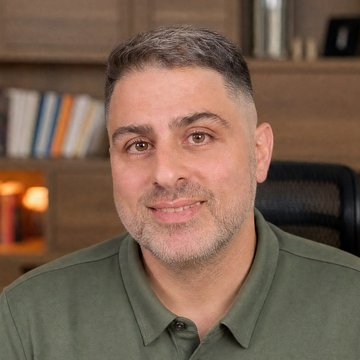
Ronnie spent 18 years building a SaaS with a team of 20 that served over 650,000 customers, generated over $14M in sales, and sent over 550M emails. Now he's solo, solving real business bottlenecks and turning them into working AI skills, workflows, and automations. He teaches all of it, with direct access to him, inside the Solo Creators AI Studio Skool community. See what he's built →
 Michael HattawayFounder, Iron Strengthens Iron
Keep reading