A generation you hate still costs you a credit. You look at it, you'd never post it, you throw it away, and the meter counts it anyway. That's the detail that ended Canva for me. Five hundred credits a month, shared across every Magic Studio feature, and the official fix when you run dry is an AI Pass at around $100 per person per month. Hit the wall on day 18 and your only real choices are wait for the reset or pay again.
I say that as an exited founder. I built and sold a SaaS business that generated over $14 million in revenue, and I never wrote a line of the code behind it. Design was the same story: I could sell the thing, I just couldn't open a design file and make it look right.
And yet I've shipped a website, a weekly newsletter, and a whole stack of tools. That includes the carousels and slide decks you're about to see in this post.
So if you're a coach, advisor, consultant, or course creator paying for Canva (and maybe Gamma on top) to crank out posts and presentations, this is for you. You don't need a design degree or a developer to stop renting those tools. You need a way to turn your own ideas into finished, on-brand assets without feeding a credit meter every month.
This is the most complete walkthrough I can give you. Where AI genuinely beats Canva, what building a carousel and deck actually feels like, who should and shouldn't switch, the mistakes to avoid, and the one place Canva still wins. And I'll show you exactly where to get the finished skills so you don't have to build a thing. Let's get into it.
Why does Canva cost more than the sticker price?
Canva Pro runs about $15 a month, but the real cost is the AI credit meter: roughly 500 credits a month shared across every Magic Studio feature, with failed generations still counted against you, and the only official fix when you run out is the AI Pass add-on at around $100 per person per month.
Stack Gamma for decks (another $8 to $20 a month, also credit-metered) and a solo creator pays $25 to $35 a month across two metered subscriptions.
Let me be clear: Canva is a good product. That's not the argument. The argument is what it quietly costs you in time and compounding subscriptions.
The $15/month lands between $120 and $144 a year depending on how you pay. Fine. But those 500 AI credits are shared across everything: image generation, Magic Write, magic edits, the works. Failed generations still burn credits. So if you're a heavy user, you can hit the wall by mid-month.
Canva added a real-time credit tracker in early 2026, which helps, but a tracker doesn't give you more credits. It just shows you the meter running.
Gamma's meter works the same way: 1,000 refreshing credits on Plus, 4,000 on Pro. Two tools, two meters, two annual lock-ins.
Canva's only official fix when the credits run out is the AI Pass: around $100 per person per month, on top of the $15 you already pay. The day you stop paying, the carousels stop.
There's a scale problem the Canva-alternative roundups admit themselves. A social manager producing around 84 graphics a month spends 10 to 20 minutes on each one inside the template editor. That's real hours, every month, forever. AI-native generation collapses that into a fraction of the time, with more visual variety, and no credit meter.
What does "replace Canva with AI" actually mean?
Replacing Canva with AI means moving the repetitive 80% of your design work (generating branded carousels, decks, and graphics from content you already have) into a tool you own instead of rent.
It does not replace pixel-precise manual layout: Canva's drag-and-drop editor is still better when you need to nudge a logo three pixels left. The switch pays off when you make the same kind of asset over and over.
Let me be precise, because the internet is full of overclaims and I'd rather earn your trust than lose it on paragraph four.
Claude Code does not replace 100% of Canva. If your job is freehand layout or matching a brand template to the exact gutter, keep Canva for that.
What AI replaces is the repetitive job you do most: "generate a branded carousel, deck, or graphic from my content." That's the part that eats your week. Take a blog post, a transcript, or a rough idea, and turn it into a finished, on-brand asset. AI does that job faster, without the meter.
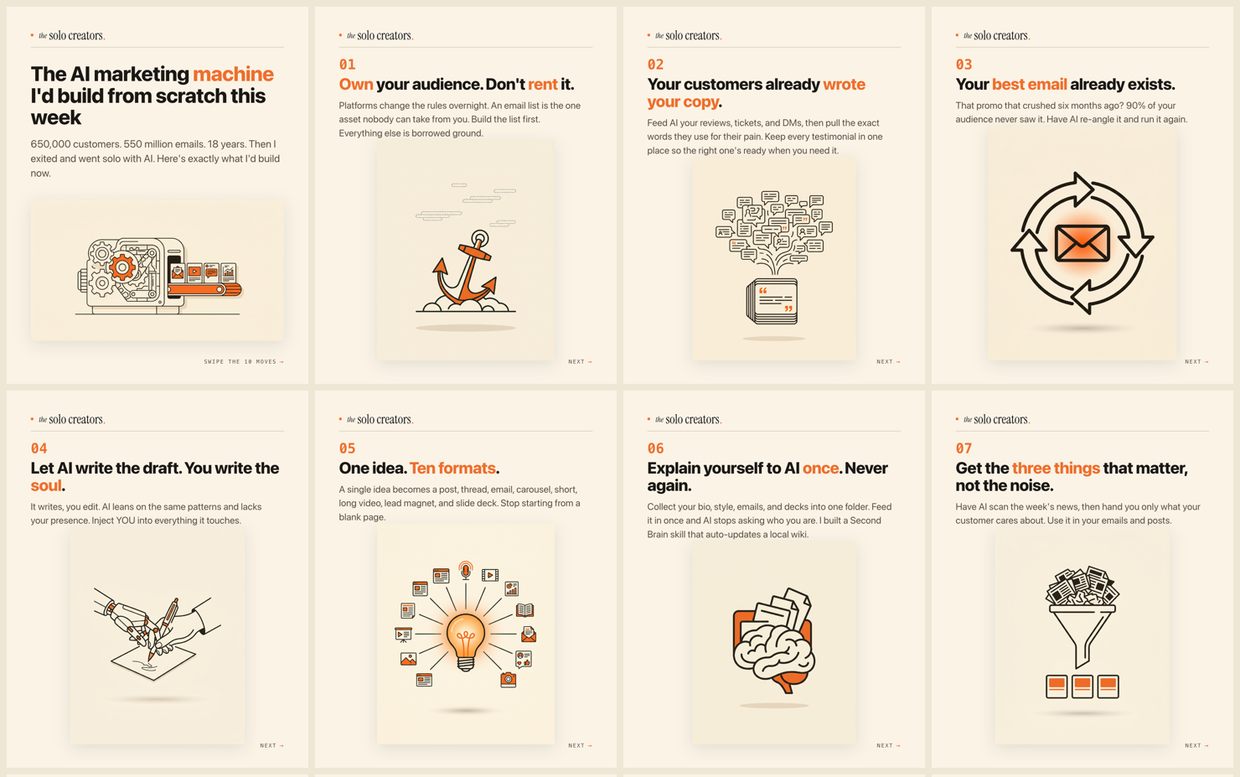
Here's a carousel generated start to finish inside the desktop app. No Canva, no template hunting, no credits.
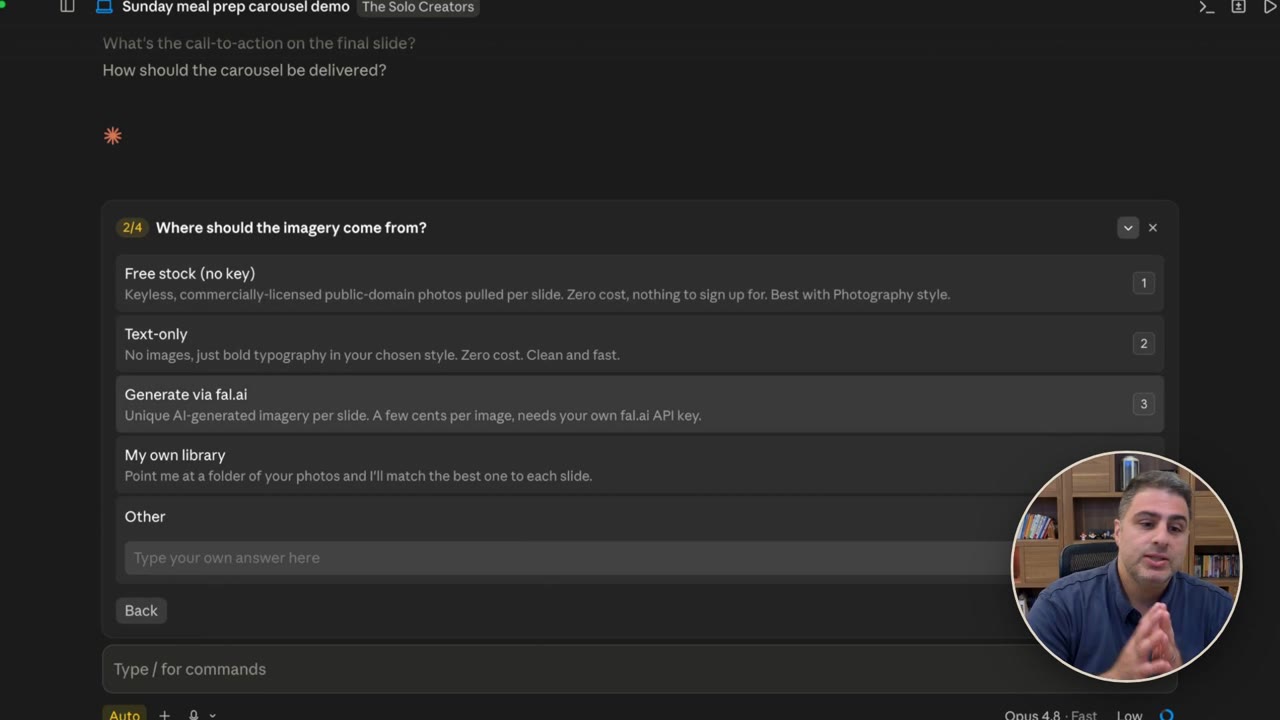
You answer a few plain-English questions. Then it writes every slide, generates the images, and renders the files. No design app, no layout work.
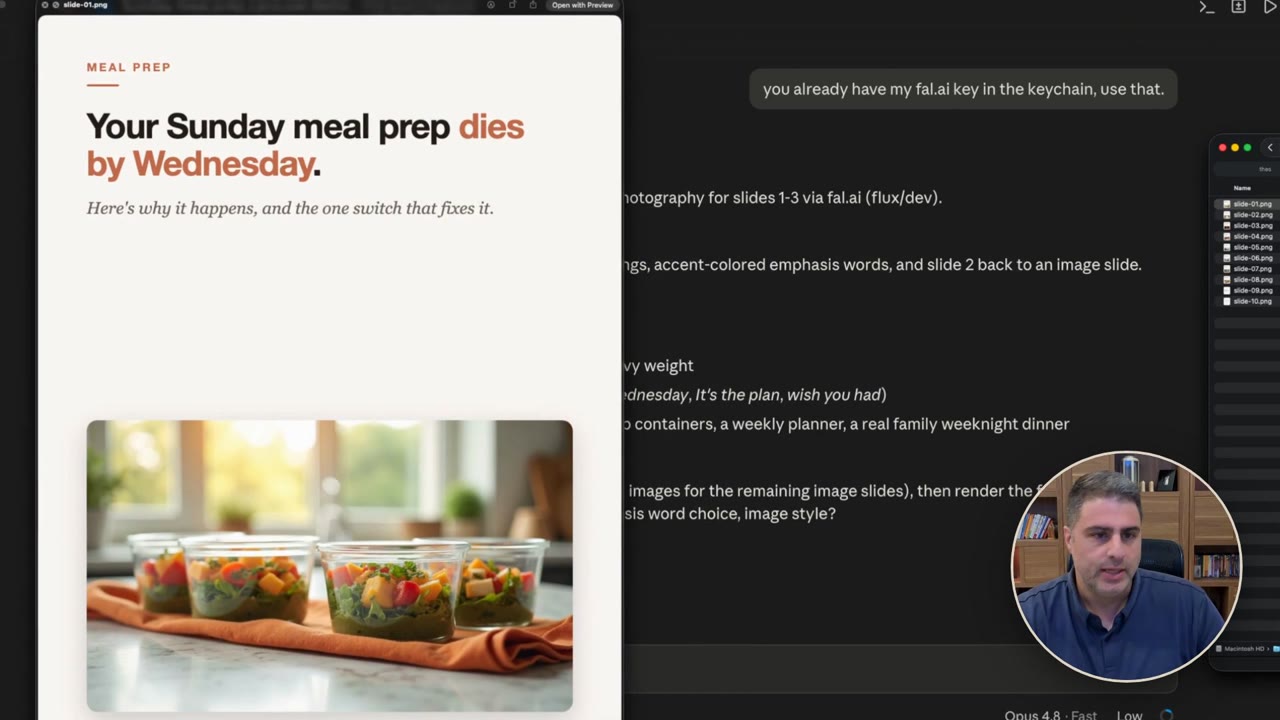
Here's the part I want to be crystal clear about, because it's the whole point: you don't have to build any of this yourself. The carousel above was made with the Carousel Generator, and the deck further down was made with the Slide Deck Builder.
Both are finished, done-for-you skills that are live inside the Solo Creators AI Studio right now. You install the finished skill (all clicks, no terminal), and start generating on-brand carousels and decks from day one. You're not writing instructions or figuring out a recipe. It's already built. You just point it at your content.
The same skill does wildly different looks. Here's a dark, photo-led style on a completely different topic:

I gave it a source (paste a blog post URL, a transcript, or just a topic), it picked a visual style, generated the imagery for each slide, and rendered final PNGs ready to post to LinkedIn and Instagram. The whole thing happened in a plain-English chat. No layout fiddling on my end.
And here's a slide deck built the same way, the kind of thing you'd normally open Gamma or PowerPoint for.
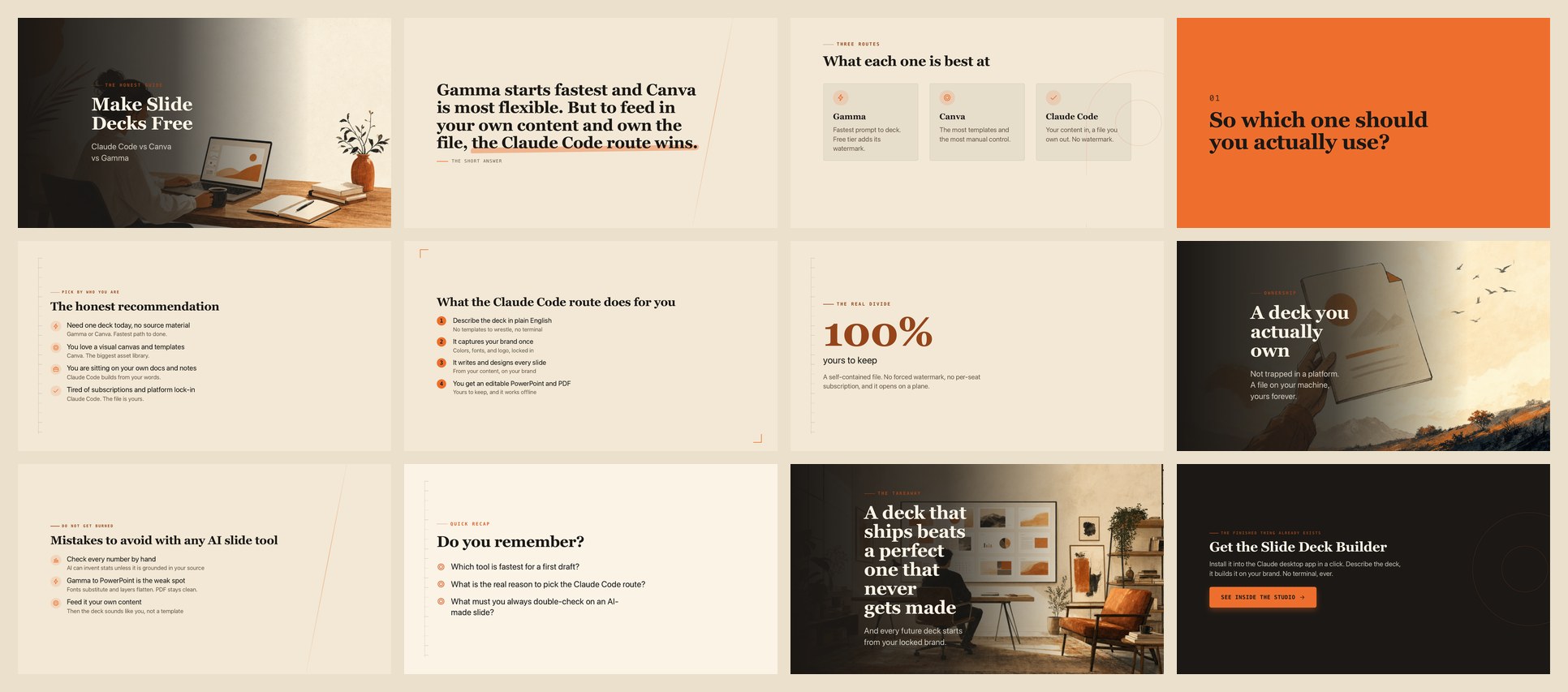
Same idea. I handed it the content, it captured my brand (colors, fonts, logo), and it wrote and designed the slides with the right structure for the goal: persuasive framing for a sales deck, teaching structure for a course module.
Out came an interactive deck I could export to PDF or editable PowerPoint. If decks are your main event, I wrote a full head-to-head on building slide decks in Claude Code vs Canva vs Gamma that goes deeper on that one asset type.
What does making your first carousel actually feel like?
Making a carousel in Claude Code feels like a short chat, not a design session: you open the desktop app, paste a blog post or topic, pick a visual style from the options it offers, and it writes, illustrates, and renders finished slide images sized for LinkedIn and Instagram.
You review, ask for tweaks in plain English, and download the files. The first run takes a few extra minutes to set your brand; every run after is a sentence and a quick review.
Here's the part most articles skip. Let me walk you through the experience once the skill is installed, so you know there's no catch and no learning curve.
Everything below happens in the Claude Code desktop app (download it from the Code tab at claude.ai). You never touch a terminal. If you haven't set the app up yet, here's how to get Claude Code running with zero terminal, click by click. And installing the Carousel Generator from the Studio is the same story: a few clicks inside the app, no commands, no code.
- Open the desktop app and start a chat. It's the same chat box you'd use to ask any question. You type your request here in plain English.
- Give it your source. Paste a blog post URL, a webinar transcript, a rough outline, or just a topic. Say something like, "make a 10-slide LinkedIn carousel from this post." The more raw material you give it, the more it has to work with.
- Pick a visual style. It offers a direction (clean, hand-drawn, photo-led, documentary, and so on). You pick the one that fits your brand. A one-line choice, not an afternoon of template browsing.
- Let it generate and render. It writes the copy for each slide, generates or sources the imagery, and renders finished PNGs at the right size (1080 by 1350 for both LinkedIn and Instagram).
- Review and request tweaks. Don't like slide 3's headline? Say so. "Make slide 3 punchier and swap the image for something calmer." It re-renders. No starting over.
- Download and post. You get the final image files. Upload them to LinkedIn and Instagram yourself, or have it queue them if you've connected a scheduler.
That's the entire loop. The first time takes a few extra minutes because you're setting your brand (more on that next). Every time after, it's a sentence and a quick review.
A social manager shipping 84 graphics a month spends 10 to 20 minutes on each one inside a template editor. The 6 steps above collapse that into a short chat.
How does it stay on-brand every single time?
It stays on-brand because your brand is saved inside the skill itself: your exact colors, fonts, logo, and tone are set once, approved once, and then every carousel or deck the skill produces inherits that look automatically. There's no template to remember to start from and no re-explaining your hex codes each session. Today's slide 1 matches the slide 1 you made three months ago.
This is the question that separates a toy from a tool, and it's where the "skill" idea matters.
Claude Code (again, the desktop app, all clicks, no terminal) has a Customize hub where you install skills. A skill is a ready-made capability that already knows how to do a job, and holds your brand details.
You don't build it. You install a finished skill from the Solo Creators AI Studio, tell it your brand once, toggle it on, and from then on it builds the same on-brand asset every time you ask. You can even set Routines so a skill runs on a schedule.
The practical upshot for a non-technical creator:
- First time: you install the ready-made skill from the Studio and set your brand once. Colors, fonts, logo, voice.
- Every time after: you type something like "make a 10-slide carousel from this post" and it comes out matching your brand, with no re-explaining.
- No drift: because the brand is saved in the skill, slide 1 of today's carousel matches slide 1 of one you made three months ago.
That's the unlock the metered tools can't quite match. Canva templates keep you on-brand only if you remember to start from the right template and don't touch the wrong thing. A skill keeps you on-brand because the brand is baked in and the AI does the assembling.
One more thing worth saying plainly. The right way to set up a brand is to render two or three sample slides first, approve the look, then lock it. Sign off on the style once, and every asset after that inherits it. You're not re-approving the vibe every time.
Canva vs. Gamma vs. Claude Code: which should you use?
Use Canva when the job is pixel-precise, one-off visual design. Use Gamma if slide decks are the only thing you make and the credit meter doesn't bite you. Use Claude Code (the desktop app) when the job is repeatedly turning your own content into finished, branded carousels, decks, and graphics, because a saved brand skill removes the setup work and there's no subscription meter on the workflow.
Here's the side-by-side. I'm including where the others win, because they do.
| What you care about | Canva Pro | Gamma | Build it in Claude Code |
|---|---|---|---|
| Carousels (IG / LinkedIn) | Yes, template editor | Limited | Yes, generated from your content |
| Slide decks | Yes | Yes, its specialty | Yes, with PDF + PowerPoint export |
| Social graphics | Yes, strongest here | No | Yes |
| Pixel-precise manual layout | Best in class | Good | Weakest, not its job |
| On-brand without re-doing setup | Manual (pick template) | Manual | Saved in a reusable skill |
| Monthly credit meter | Yes (~500, shared) | Yes (1,000 to 4,000) | No subscription meter |
| Compounding cost | $120 to $144/yr+ | $96 to $240/yr | Install once from the Studio, own it forever |
| Terminal or coding needed | No | No | No (desktop app, clicks only) |
The pattern is clear. Canva wins on freehand graphic design and pixel control. Gamma is purpose-built for decks and does that one thing well. Claude Code wins when the job is "take my content and produce the finished branded asset," and it wins hardest on cost structure, because you're not feeding a meter.
Even the pro-AI roundups land on a hybrid: use AI to generate, use Canva to fine-tune. I agree with the spirit. My only refinement is that a Claude Code skill collapses most of that hybrid into one tool you own, so you reach for Canva only for the genuine pixel-pushing edge cases, not the everyday grind.
Who should switch, and who should just keep Canva?
Switch if you produce the same kind of asset repeatedly (a weekly carousel, a recurring deck, social graphics from your blog or podcast) and you've hit a credit wall or you're stacking two subscriptions. Keep Canva if your work is mostly one-off, hand-crafted visual design, if your team lives inside a specific Canva brand kit, or if you make so few graphics the meter never bites.
I'd rather you make the right call than the one that flatters my argument. So here's the split.
This is for you if:
- You make the same kind of asset over and over (a weekly carousel, a recurring deck, social graphics from your blog or podcast).
- You're tired of hitting a credit wall mid-month or stacking two subscriptions.
- You want your output to stay consistently on-brand without babysitting it.
- You start from content you already have: posts, transcripts, notes, outlines.
Just keep Canva if:
- Your work is mostly one-off, highly visual design where you push pixels by hand (event flyers, intricate infographics, packaging mockups).
- You need a specific Canva template or brand kit your team already lives inside.
- You make so few graphics that the subscription is a rounding error and the meter never bites.
Still on the fence? Run this quick audit with real numbers from your own account. It takes about five minutes and settles the question with data instead of vibes.
The 5-minute meter audit:
- Open Canva's credit tracker (it's been there since early 2026) and note how many credits you have left versus how many days are left in the month. Ran dry before day 20? That's a flag.
- Count last month's assets. Scroll your Canva projects and tally everything you actually shipped. Multiply by 15 minutes each. That's your monthly template-editor tax in hours.
- Circle the repeats. How many of those assets were the same format again (weekly carousel, monthly deck, quote graphics)? That repeating slice is exactly what a skill automates.
- Add up every design-adjacent subscription. Canva, Gamma, stock photos, anything you keep "just for graphics." Write the annual total down. Seeing it yearly instead of monthly changes the math.
- Apply the rule of thumb: if you ship 8 or more recurring assets a month, or you've hit the credit wall twice in a quarter, the repetitive work should move to a skill you own. If neither is true, keep Canva and revisit in six months.
There's no shame in staying. Sometimes the simple, familiar tool is the right answer. The repetitive 80% of your design work just doesn't need a monthly meter, and that's the part worth moving.
What mistakes trip people up when they switch?
I've watched people try this and bounce off for reasons that have nothing to do with the tool. Here are the traps, so you skip them.
- Skipping the brand setup. If you don't set your colors, fonts, and logo up front, the output looks generic and you'll blame the AI. Spend the ten minutes once. It pays back forever.
- Feeding it nothing and expecting magic. "Make me a carousel" with no source gives you a bland carousel. Hand it a real blog post, a transcript, or at least a tight topic brief. Garbage in, generic out.
- Trying to pixel-tune inside the chat. Don't fight it to move a logo two pixels. That's exactly the job Canva is better at. Generate the 80% here, do the rare precise nudge there if you must.
- Canceling Canva on day one. Don't. Run both in parallel for a month, then decide with data. Ripping out a working tool before the replacement is proven creates a stressful gap.
- Re-explaining your brand every session. If you're pasting your hex codes into every new chat, you haven't saved your brand into the skill yet. Set it once so the brand is baked in.
The rule of thumb: set the brand once, feed it real content, and let it own the repetitive 80%. Reach for Canva only for the pixel-perfect 20%.
What do the AI-generated images actually cost?
When a skill generates original imagery for your slides, the images come from an AI image model, and image models charge a small per-image cost. It's real, it's not zero, and most "cancel Canva" posts skip it.
The difference is the cost shape: you pay only for images you actually create, with no monthly floor and no credit wall, and free stock imagery covers the slides that don't need a generated visual.
Compare the two cost shapes:
- A subscription charges you every month whether you make one graphic or fifty, and caps you with credits regardless. You pay for access, not output.
- Per-image generation charges only for what you actually create. Make nothing this month, pay nothing. Make a lot, you pay for a lot, but there's no monthly floor and no credit wall pushing you toward a $100/month add-on.
For most solo creators at normal volume, the per-image approach comes out well ahead of stacking Canva and Gamma, and you're never blocked mid-month. You can also lean on free stock imagery for slides that don't need a generated visual, which drops the cost further.
At current rates that's about $0.04 per generated image: around 40 cents covers a full 10-slide carousel's imagery. Make nothing this month, pay nothing.
What else can this replace besides Canva?
The same approach that replaces Canva's everyday grind extends across your whole content operation: newsletters, websites, lead magnets, and more, all built in the same desktop app with the same saved brand. That's why this matters more than saving a few dollars. Once you're building assets in a tool you own instead of renting separate ones, the stack starts to collapse into one place.
Remember the opening of this post: a website, a weekly newsletter, a whole stack of tools, plus the carousels and decks you've seen here. Not a roadmap, a receipt. The point isn't that I'm special, it's the opposite: none of that needed technical skill, it needed a tool that already knew the job.
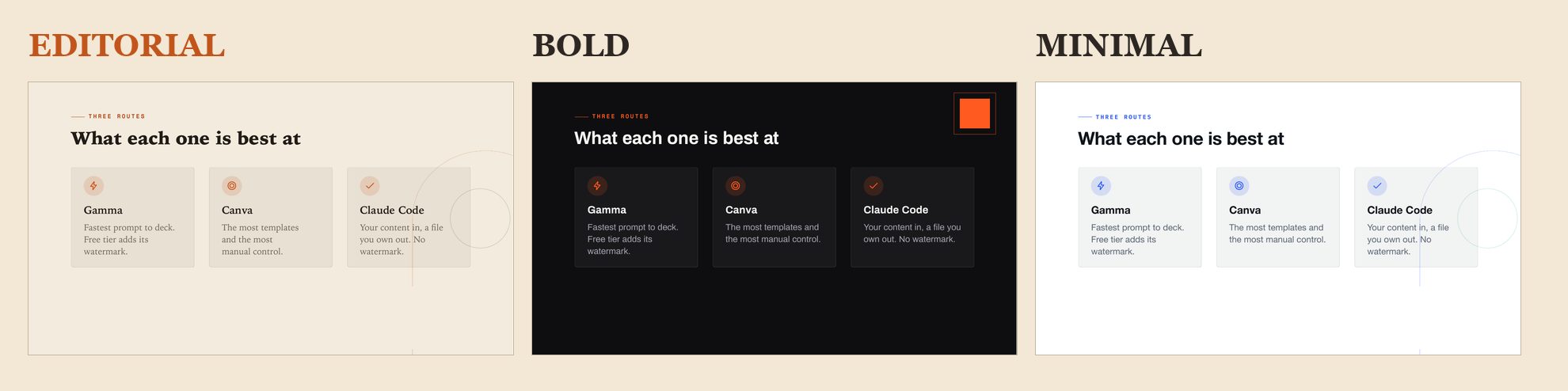
It doesn't stop at static images either. The same plain-English approach builds a real weekly newsletter, designed and ready to send.
And it builds full websites. The page you're reading this on, and the homepage below, were both produced this way.
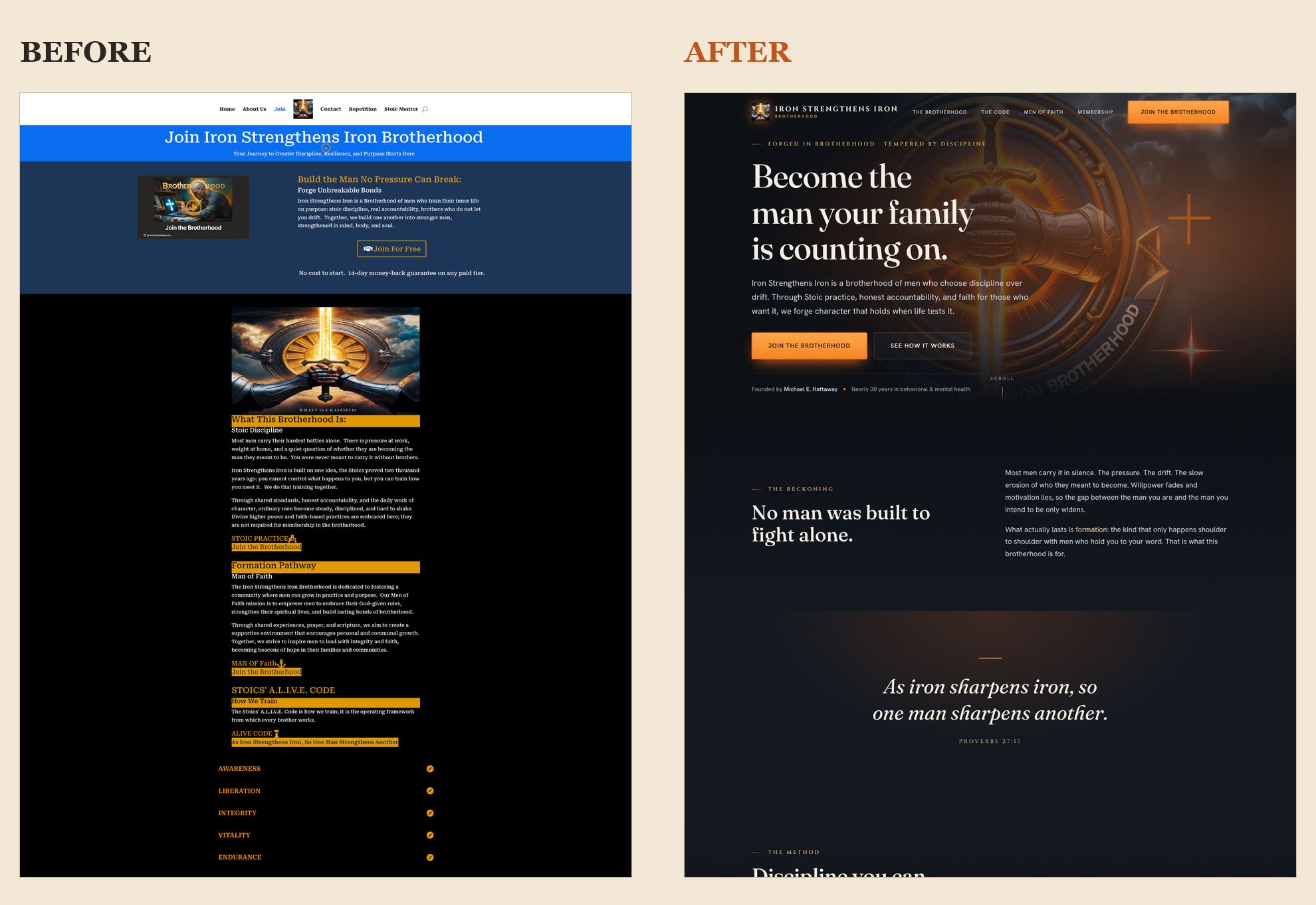
That's the bigger picture, and it's real proof the approach holds up beyond one asset type. I keep a running breakdown of every tool I cancelled and what replaced each one if you want to see how far the consolidation goes.
But for you, right now, the entry point is simple and specific: the Carousel Generator and the Slide Deck Builder. Those two finished skills replace the everyday grind of Canva and Gamma, and both are live in the Solo Creators AI Studio today.
Install them, set your brand once, and start shipping on-brand carousels and decks this week. Every new skill I build (a website skill, a newsletter skill, and more) lands in the Studio too, so the rest of that stack consolidation is there whenever you're ready for it.
Where do you start if you're Canva-curious?
Start small and keep your safety net: don't cancel anything yet, move your single most repetitive asset (usually the weekly carousel or the recurring deck) into Claude Code first, set your brand once, and run both tools in parallel for a month. Then decide with data. If the AI version covers 80% of what you did in Canva, you'll know whether the subscription still earns its place.
The smart migration, step by step:
- Keep Canva for now. Don't cancel anything yet. Lower the stakes.
- Move one repetitive job first. Pick the asset you make most often and build that in Claude Code with the Carousel Generator or the Slide Deck Builder.
- Set your brand once. Colors, fonts, logo, voice. This is the step that makes everything after it effortless.
- Run it for a month. See how the output and the time saved compare to your Canva habit.
- Decide with data. If the AI version covers 80% of what you were doing in Canva, you'll know whether the subscription still earns its place, or whether it drops to an occasional pixel-tuning tool.
That's the whole move. Not "Canva is bad," but "the repetitive 80% doesn't need a monthly meter, and you can own that workflow instead of renting it."
You're not starting from scratch every time and hoping the post looks right. You're building a design studio you control, that knows your brand, and that doesn't send you an invoice every month to keep the lights on.
Get the two skills that make this real
You don't have to build any of this. The Carousel Generator and the Slide Deck Builder are finished, done-for-you skills, available in the Studio right now, all clicks, no terminal.
Join the Solo Creators AI Studio to install both, set your brand once, and start shipping on-brand carousels and decks this week. Plus you get a new skill like these every month, and you keep every file you make forever.
Key takeaways
- Replacing Canva with AI is real for the 80% job: generating on-brand carousels, decks, and graphics from your content. It does not replace freehand pixel-precise layout, and that's fine.
- The two finished skills are the Carousel Generator and the Slide Deck Builder. Both are live inside the Solo Creators AI Studio today, installable in a few clicks (no terminal), so you get the finished thing instead of building it yourself.
- The hidden cost of Canva and Gamma is the meter. Canva Pro shares ~500 AI credits across all features (failed generations still burn them), and the only fix is a about $100/month AI Pass. Stack Gamma and you're at $25 to $35/month for two metered subs.
- A skill keeps you on-brand automatically. Install it, set your colors, fonts, and logo once in the Claude Code desktop app, then every carousel and deck comes out matching, no re-explaining.
- Run the 5-minute meter audit before deciding: if you ship 8+ recurring assets a month or you've hit the credit wall twice in a quarter, move the repetitive work to a skill you own.
- Image generation has a small per-image cost, and that's still cheaper than a subscription floor for most solo creators, because you only pay for what you actually make and never hit a credit wall.
- Migrate gradually: keep Canva, move your most repetitive asset to AI first, set your brand once, run it a month, then decide with real data.
Get this skill, and every one I build.
30-day money-back guarantee. Cancel anytime.
Questions people ask
Can Claude Code actually make Instagram and LinkedIn carousels and slide decks, or just text?
Do I have to build the skill myself, or is it already made?
Do I need to know how to code or use a terminal?
How does it stay on-brand every time?
What does making a carousel actually feel like once the skill is installed?
Will it match Canva's exact templates and pixel-level control?
Is there a monthly credit limit like Canva or Gamma?
What about image generation costs?

Ronnie spent 18 years building a SaaS with a team of 20 that served over 650,000 customers, generated over $14M in sales, and sent over 550M emails. Now he's solo, solving real business bottlenecks and turning them into working AI skills, workflows, and automations. He teaches all of it, with direct access to him, inside the Solo Creators AI Studio Skool community. See what he's built →
 Dr. Tracey MarksPsychiatrist and YouTube educator
Keep reading