Read small print and find dropped things with spoken camera tips
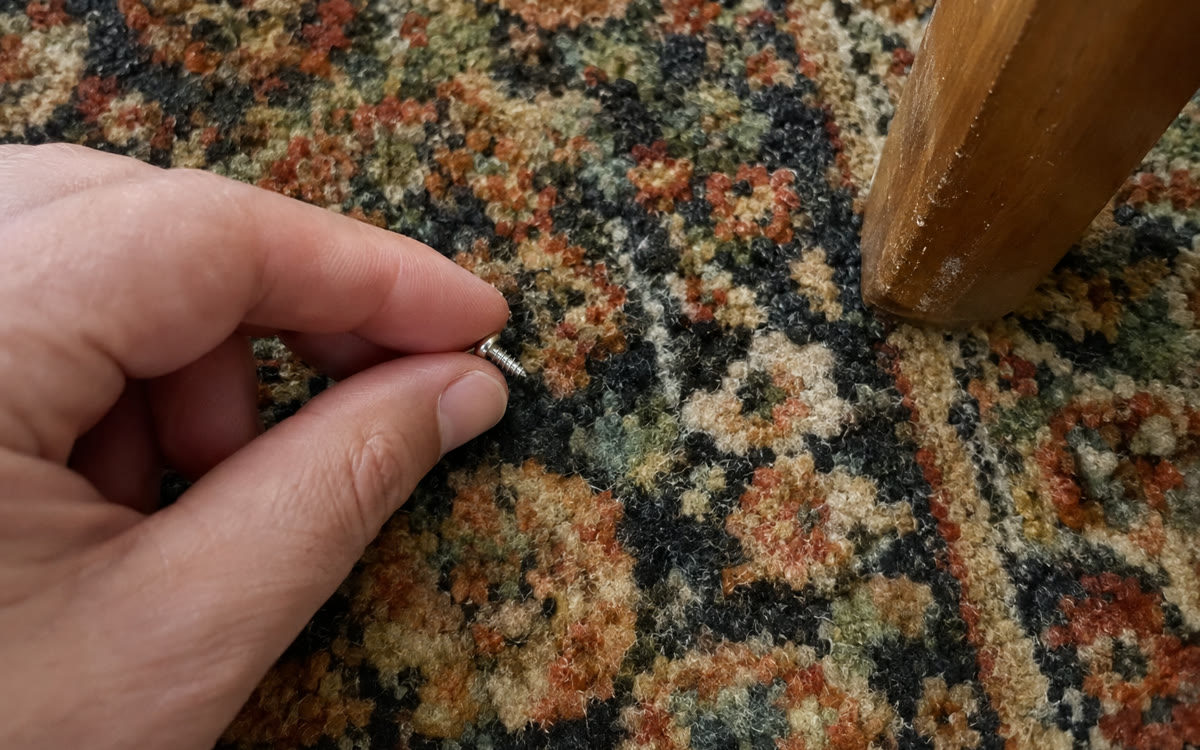
If the camera is too close or off to the side, Gemini tells you out loud to step back or tilt down.
Published . Steps as of November 2026.
Can my phone read small labels out loud for me?
Yes. On Android, turn on Guided Vision in Gemini Live, as of October 2026, then point your camera at the label or dial. Gemini reads it aloud and tells you how to reframe if it can't see well. It suits reading nutrition labels, appliance dials and dim menus, or finding a dropped earbud. It isn't meant for navigation or safe travel, so don't use it to get around.

A picture made with AI to show the idea.
Your prompt
Fill in your details. Skip any you like.
This AI can't be filled in from a link, so the button copies your prompt: paste it into the new chat.
The prompt that gets copied
I'm pointing my camera at [WHAT YOU SEE, e.g. the dial on my oven]. Please read out exactly what it says, starting with [MOST IMPORTANT PART, e.g. the temperature setting]. If you can't read it clearly, tell me how to move the phone, one small step at a time. Then answer this: [YOUR QUESTION, e.g. is it set to bake or broil?]. Keep your answers short and speak slowly.
Turn on Guided Vision in Gemini Live and point your Android phone at a label, dial or dim menu. Gemini reads it out and tells you how to move the camera if it can't see well.
Step by step
- Open the Gemini app, tap your profile, and turn on Guided Vision in Live
- Open Gemini Live and share your camera
- Point at the label, dial or menu and say the prompt below
- Follow the spoken tips to reframe until it reads clearly
What you'll get
A spoken reading of the print, step-by-step camera directions when needed, and a short answer to your question.
Android 9 or later, where Gemini Live is available. Google says it can make mistakes and isn't a mobility aid.
- Made for
- Everyone
- Works in
- Gemini