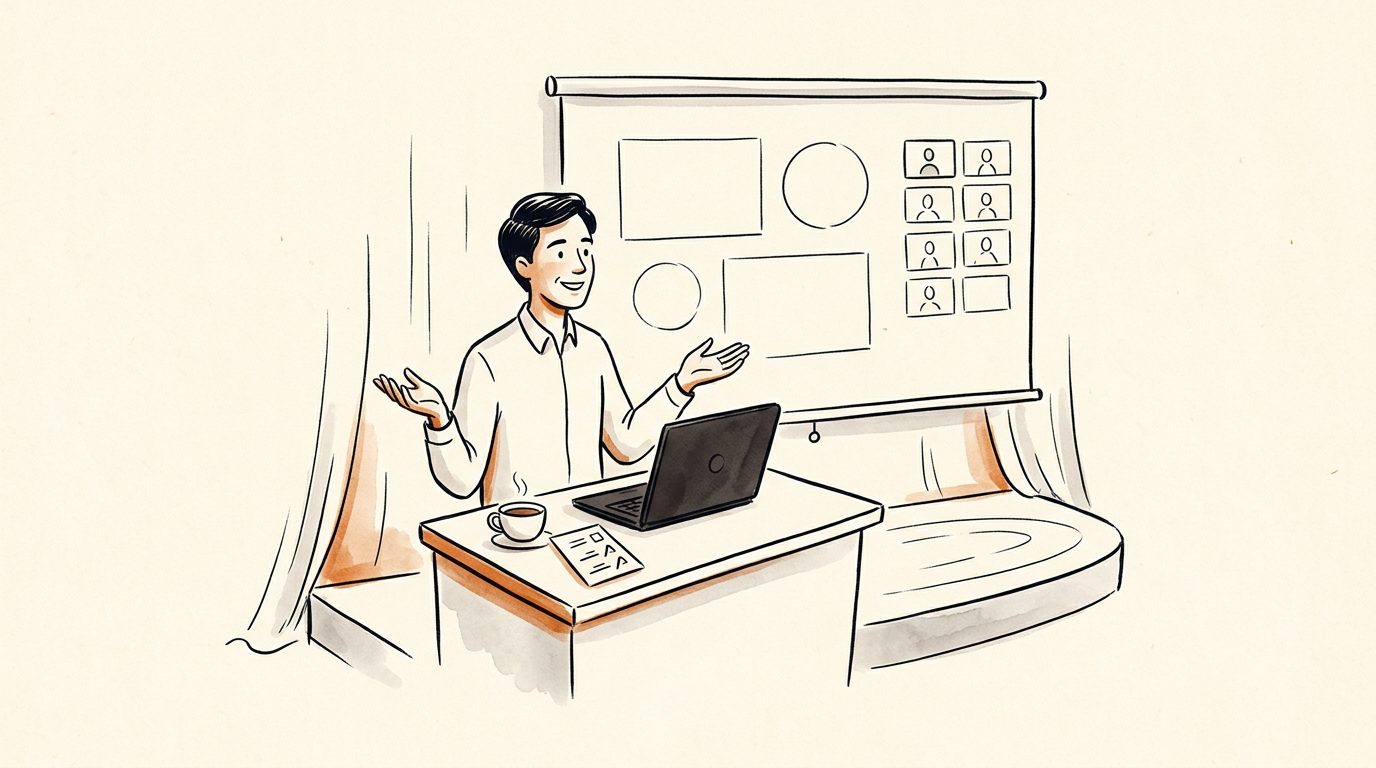
Treat the webinar as a project with 6 files
In September and October 2026, I ran 2 partner webinars 10 days apart. One was a 20-minute slot inside a business network's weekly session. The other was the AI team workshop hosted by Justin Popovic: a full hour plus Q&A.
I didn't hire anyone for either one. Claude did nearly all of the preparation, and the part I'm proudest of is how calm the calls felt from my side of the screen. And the questions turned into a week of content afterwards.
The trick is to stop thinking of a webinar as "a talk with some slides" and start treating it as a small project with a handful of files. Each file has one job. Here's the set I used for both events:
| File | Its one job |
|---|---|
| The brief | Every fact about the event: date, length, audience, host, format, the offer |
| The speaker one-pager | Everything the host needs to promote you, ready to paste |
| The promo kit | Registration copy, swipe emails and social posts for the host's audience |
| The deck | The slides, built from an outline, with speaker notes |
| The run sheet | Minute by minute: what to say, what to type, which slide |
| The demo folder | Every finished example, numbered, with backups of every live step |
Every one of these started as a conversation with Claude, which is why one person could prepare the whole set alongside a normal workload. I described the event, answered its questions, and reviewed what came back.
The webinar, as files
6 files, each with one job
Start with the brief. Every other file reads from it.
Start with the brief, and make every other file read from it. When the date, the length or the offer changes, you change it once. That alone prevents the most embarrassing webinar mistake there is: a promo email that says one thing and the slide that says another.
Give the host everything they need to promote you
A partner webinar lives or dies on the host's promotion. Your job is to make that promotion effortless for them.
The first thing one host asked me for was simple: a topic, a short bio and a photo. So Claude wrote a one-page document with everything ready to paste:
- A session title and a one-line description. Written for the host's audience, in words they'd use.
- A short promo description with 3 specific takeaways people would leave with.
- A short bio with the few numbers that matter.
- One photo, the same headshot I use everywhere.
For the hour-long session, I went further and gave the host a full promo kit: registration page copy, 5 swipe emails timed to the host's send schedule, a community post and a social post. All of it was written in the host's voice for the host's list, because that's the voice their audience already trusts.
5 swipe emails, registration copy and 2 posts, in the host's voice: the best gift you can give a webinar host is promotion they don't have to write.
There's a detail here worth stealing. If your demo will use the host's own material, keep that a surprise. Every piece of my promo copy was checked so it never revealed whose video or website I'd be using. Claude kept a note of that rule in the brief, and every later file followed it.
Ask the host 4 questions before you write a word. How long is the slot, to the minute? Who's in the room, and what do they already know? Is an offer allowed, and where in the session? And who reads the chat while you present? Every answer goes into the brief.
Build the deck from an outline you've already approved
I didn't design a single slide by hand. I wrote the outline with Claude, then had the Slide Deck Designer skill build the deck from it.
That order matters. An outline forces you to decide what each slide is for before anyone spends time on how it looks. My rules for the outline were simple: one idea per slide, a headline that says the point, and a speaker note for anything I'd need to remember.
The core of the talk stayed identical in both decks. Only the depth changed.
One story, 2 decks: 16 slides for the 20-minute slot and 28 for the hour, with the same core in both.
A few deck choices made the live delivery easier:
- Speaker notes on a key. Pressing one key opens a notes panel with what to say and the name of the next slide, so I never lost my place.
- One bold moment. One slide gets the big animation: the 5-line prompt typing itself out, then the 8 skill names fanning out of it. Almost everything else stays still, so that one moment lands.
- A grid view. One key shows every slide at once, so I could jump straight to the right one when a question came up.
Before each event, Claude took a screenshot of every slide at full presentation size and checked them for text that was too small, colours that were hard to read, and anything crowding the edges. I reviewed the screenshots and never opened the code.
If you'd like the full story of what was on those slides, I've written it up in build your own AI team, even if you're not technical.
Show the work instead of describing it
Most webinars about AI describe what's possible. The ones that convert show it, on screen, on the audience's own kind of work.
My demo turned one video and one website into 8 finished pieces: a playbook, a website audit, a slide deck, a carousel, a short-form slideshow, a fact check, a promo video and a teaser. One pasted prompt started all 8, through what's now the Content Chain skill:

Pick material the room will recognise. With the host's permission, a demo built from the host's own video lands harder than any sample, because the audience knows it on sight.
The catch with live demos is time. The full set of 8 took 20 minutes on the first run and an hour on the second. Nobody wants to watch a progress bar for 20 minutes, let alone an hour.
So I used what I call the cooking-show method:
- Pre-cook everything slow, from the same source. Every piece was made days before, from the exact video and website I'd show on the call.
- Show the instruction, then open the result. On the call, I showed the short prompt that made everything, then opened each finished piece one at a time.
- Nothing longer than 2 minutes runs live. If you want a live moment, pick the fastest step and run only that.
- Record a backup of every live step. During a dry run a few days before, I recorded my screen running each step. If anything stalled on the call, I'd play the recording and talk over it.
I go deeper on the demo workflow itself in turn one video into 8 finished pieces of content.
Fit the same talk into 20 minutes or a full hour
The 2 events gave me very different amounts of time: a 20-minute slot inside someone else's session, and a full hour with Q&A after. I didn't write 2 talks. I wrote one talk with a core and optional extras.
The core stayed the same. Both versions opened the same way: who I am in a few numbers, why the desktop app matters, the shift from chatting with AI to managing it, then the demo. That spine works at any length because each part is short.
The extras scaled with the time. My planning notes had a simple rule for the demo: 5 pieces are the core, and the fact check and promo video get added only when the slot is 45 minutes or more. The hour-long version also had room for more examples from members, a section on how skills get requested and built, and the offer.
The ending matched the room. The 20-minute version closed on 3 takeaways and where to find me, because that host's audience came to learn. The hour-long version, which the host had set up as a session with an offer, closed on the offer and then the questions.
If you're asked to speak somewhere new, ask for the exact length first, then cut extras rather than squeezing the core. A short talk that finishes on time beats a long one that rushes its ending.
Write a minute-by-minute run sheet
The single file that made both calls calm was the run sheet. It's a table: the minute, the section, what to say or type, and which slide should be up.
Here's what the opening of the hour-long run sheet looked like, lightly trimmed:
| Minute | Section | Say or type | Slide |
|---|---|---|---|
| 0:00 | Host opens | 1 | |
| 0:03 | A member's story | A 74-year-old who built his own website | 2 to 3 |
| 0:06 | Why this tool | The numbers, then "the desktop app has hands" | 4 to 5 |
| 0:09 | Change how you think | A chat box versus a team | 6 to 7 |
| 0:13 | Delegate, don't prompt | Goals, skills, helpers | 8 |
| 0:15 | What I'm about to do | The workflow, then the 5-line prompt | 9 to 10 |
The run sheet also held the things that only matter when something goes wrong: which file to open if the live step stalls, which tabs to have open before the call, and the exact order to open the finished pieces.
You'll rarely look at it during the call. That's the point. Writing it forces every decision ahead of time, so your attention on the day goes to the people.
Ask Claude to build yours from the brief and the deck:
Using the brief and the deck outline in this folder, write a
minute-by-minute run sheet for my [length] webinar as a table:
minute, section, what I say or type, which slide.
Add a "before the call" checklist: windows to open, files to have
ready, and the order I'll show things in. Add a "what if" section:
what I do if the live demo stalls, if the host runs late, or if
nobody asks a question. Keep every line short enough to read at a glance.
Plan the Q&A as carefully as the talk
On the hour-long call, the Q&A ran longer than the presentation. That's a good sign, and it doesn't happen by accident.
Ask the host to interrupt you with questions as they come in. On the hour-long call, the host asked me early on whether to keep jumping in with questions or save them for the end. I said keep jumping in. Questions answered at the moment they're asked land better than a pile read out at the end, and fewer get lost in a busy chat.
Answer the question that was asked, then come back to the plan. If someone asks about something you'll show in 10 minutes, say so, and make sure you do. A quick "great question, that's coming up next" keeps the person engaged and the talk on track.
Prepare answers to the questions you know are coming. For a non-technical audience learning about AI, the same few always appear: Is it safe to let it touch my files? Will it cost a fortune in usage? Do I lose my work if I switch tools? Should I switch at all? I had short, plain answers ready for each.
Keep a list of every question asked. This is the part most people skip, and it's where the long-term value is. Every question from both calls became material: 3 of the articles on this site started as audience questions, including how to let AI work in your files safely.
Make one clear offer, and say it once
If the webinar has an offer, make it one offer, explained simply, with one deadline.
The run sheet for the hour-long session had a line I'd recommend to anyone: say the deadline once, then stop talking. Repeating it 5 times reads as pressure. Saying it once, clearly, and then moving to questions reads as confidence.
A few more things that worked:
- Make the offer slide match the promo. The same name, the same bonus, the same deadline as the emails people already read.
- Give the host the link to share. The host pinned the link in the chat, so nobody had to type a web address from a slide.
- Explain any confusing step on screen. When someone in the chat couldn't find the annual option on the checkout page, I opened the page and walked through it live. It took a minute and removed a real obstacle.
The offer belongs at the end of the value. The audience had already watched 8 finished pieces open on screen before they heard a word about joining anything.
Turn the recording into a week of follow-up
The call ends. The recording keeps working for you long after.
Here's what I did with the recordings, almost all of it with Claude:
- Edited replay cuts. For the 20-minute session, the Auto Video Editor skill produced a 13-minute cut of my talk and demo, plus a 1-minute captioned teaser built to work with the sound off.
- A replay page and a replay email, each with real images from the session rather than a generic thumbnail.
- A searchable video title. The replay title uses the words someone would type into YouTube.
- The transcript, mined for content. I transcribed the hour-long recording and pulled out every question and key point. This article, and the 3 others I've linked, came from those transcripts.
- Every finished file goes to the host. The run sheet's last line said it: after the call, the host gets all the files to share with their own audience. That's a second round of promotion for both of you.
Run a privacy pass before anything is shared. Check for attendee names and faces in the gallery view, private browser tabs, and anything on screen you'd mind a stranger seeing. The Auto Video Editor scans every frame for passwords and keys and blurs them so they can't be read. For one of my replays, I also made a version with a website address blurred out.
The questions people ask on a webinar are your next 3 articles. Keep the transcript, and mine it the same week.
Use AI for the preparation, and keep the room human
Everything in this article is preparation: briefs, kits, decks, run sheets, demos, edits. That's where AI saves the most time, and where it's safest to lean on it, because you review every piece before anyone sees it.
The call itself is different. The energy, the jokes with the host, reading the chat and noticing who's confused: that's the part people remember, and it's the part that sells. Let AI take everything that can be prepared, so you can be fully present for the part that can't.
A last tip: do a full dry run a few days before, using the actual files on the actual computer. A dry run catches the problems you'd never spot by reading files, and mine produced the backup recordings that let me relax on the day.
Get the skills that built these webinars
Every piece of the demo came from skills in the Solo Creators AI Studio. The Content Chain ran 8 of them from one prompt: Watch It For Me, the Website Audit, the Slide Deck Designer, the Carousel Generator, the TikTok Slideshow, the Fact Checker, the Promo Video Producer and the Auto Video Editor.
The Slide Deck Designer also built both of my webinar decks, and the Auto Video Editor cut the replays and the teaser. Each skill installs in a few minutes by dragging it into Claude Code or Codex, the desktop apps, and asking, and each comes with a short course. If you run webinars, workshops or live trainings, they cover nearly everything around the talk itself.
Key takeaways
- Treat the webinar as 6 files, each with one job: brief, speaker one-pager, promo kit, deck, run sheet and demo folder.
- Hand the host a promo kit in their voice, ready to send. Their audience already trusts that voice.
- Pre-cook the demo. Show the instruction, then open the finished result. Nothing longer than 2 minutes runs live, and every live step has a recorded backup.
- Plan the Q&A, ask the host to interrupt with questions, and keep a list of every question. They become your next articles.
- Make one offer, say the deadline once, then turn the recording into replay cuts, a teaser, a replay email and content, after a privacy pass.
Get this skill, and every one I build.
30-day money-back guarantee. Cancel anytime.
Questions people ask
Can AI help me prepare a webinar?
How do I do a live AI demo without it breaking on a webinar?
What should I give a webinar host to promote my session?
What is a webinar run sheet?
How long should a webinar be?
What should I do with a webinar recording?

Ronnie spent 18 years building a SaaS with a team of 20 that served over 650,000 customers, generated over $14M in sales, and sent over 550M emails. Now he's solo, solving real business bottlenecks and turning them into working AI skills, workflows, and automations. He teaches all of it, with direct access to him, inside the Solo Creators AI Studio Skool community. See what he's built →
 Michael HattawayFounder, Iron Strengthens Iron
Keep reading


