Bring your memory, your projects and your files across
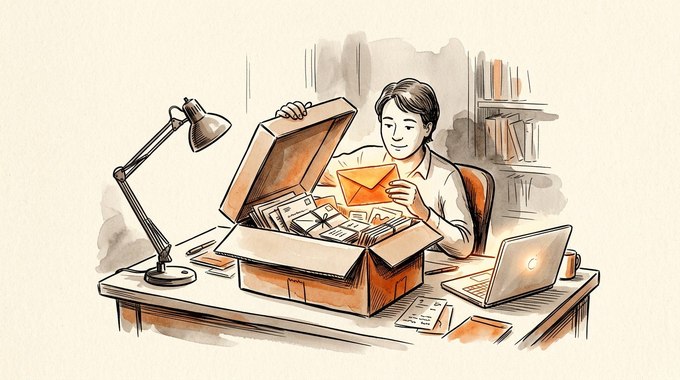
At my last live workshop, someone asked the question that stops a lot of people from trying Claude: "If I switch from ChatGPT, do I lose everything I've already built?"
No. But "everything" is really 4 different things, and each one moves a different way. Knowing which is which turns a scary switch into an afternoon's work.
- Memory: what the assistant knows about you. Your role, your business, your preferences.
- Projects: the ongoing work you've been building in conversations, with the decisions and context that live in those chats.
- Files: the documents, spreadsheets and images you uploaded along the way.
- History: the full record of every conversation you've had.
If you built custom GPTs, there's a fifth, and it has a deadline. OpenAI retires custom GPTs on December 11, 2026, so I've put that step in its own section below.
Here's the order I'd move them in, and the exact steps for each.
The move, in order
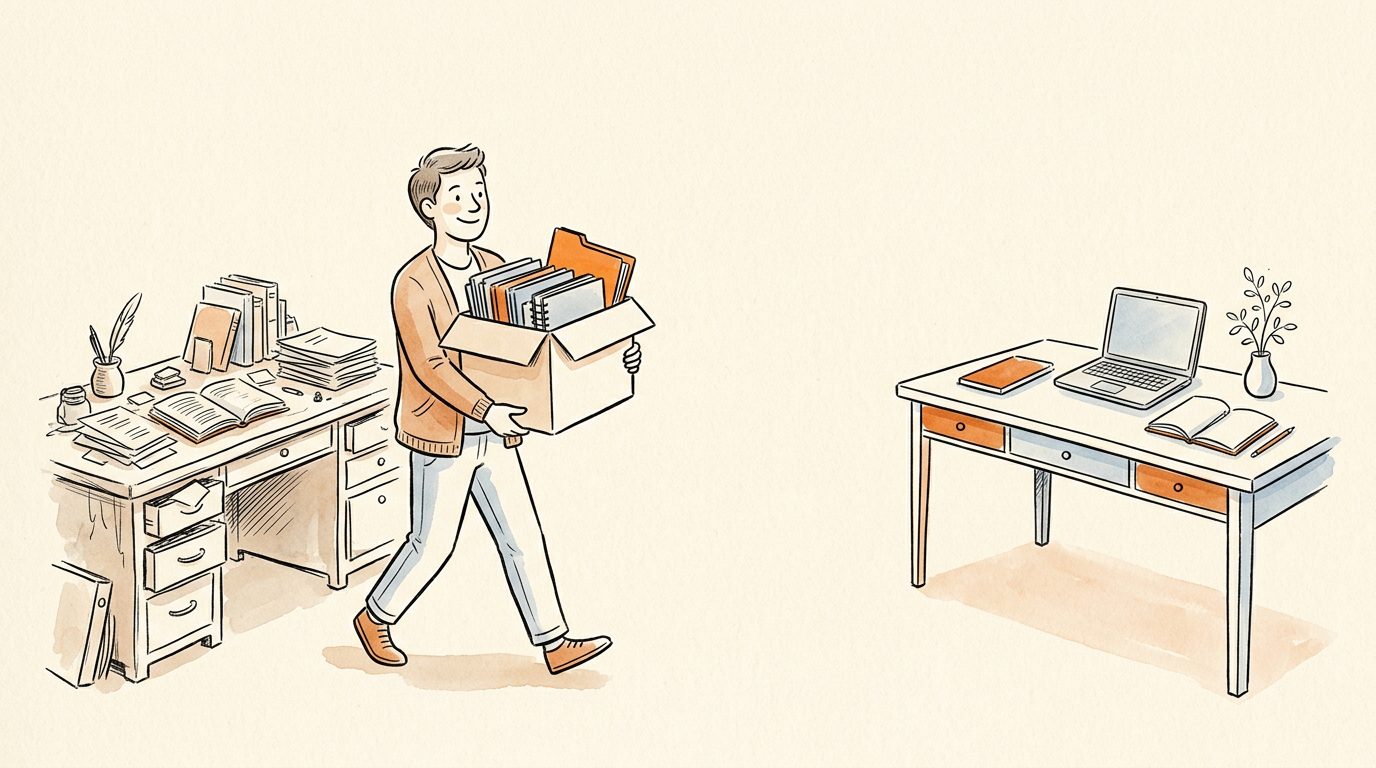
5 moves, about an afternoon
None of these steps needs a terminal or any code.
Decide whether you should move at all
Before the how, the whether. My answer at the workshop surprised a few people.
If you already pay for ChatGPT and you're happy, you don't need to switch. The big shift is moving out of the chat box and into an app that can work inside your files, whichever company makes it. ChatGPT users get that with Codex, which now sits inside OpenAI's ChatGPT desktop app next to Chat and Work (as of November 2026). Every skill I build runs in Claude Code or Codex.
The 2 companies also leapfrog each other every few months. Chasing the current leader adds a learning curve every time, and the people who get the most from AI are the ones who pick a tool and build habits in it.
Switch when you have a concrete reason. Here's how I'd decide:
| Your situation | My suggestion |
|---|---|
| You pay for ChatGPT and mostly chat with it | Stay, and move your real work into Codex |
| You want Claude's writing or Claude Code's tools specifically | Move, using the steps below |
| You want to try both before deciding | Run both for a month on one shared folder (step 4) |
| A course, client or team you work with runs on Claude | Move, so you're working in the same place |
If you're moving, the rest of this article is your checklist.
Import your memory into Claude in about 5 minutes
Claude has a built-in memory importer, and it's the fastest win of the whole move. According to Anthropic's help article, it's available on every Claude plan (Free, Pro, Max, Ultra, Team and Enterprise), on the web and in the Claude desktop app, as of November 2026.
Here's how it works:
- In Claude, open Settings, then Your Claude, and select "Start import." In the older Settings layout, it's under Settings, then Memory. Claude shows a ready-made prompt and a box to paste into.
- Copy that prompt into a ChatGPT chat. Read ChatGPT's answer before you copy it, and delete anything you'd rather not carry over.
- Paste the answer into Claude's box and click "Add to memory." Claude breaks it into separate memory entries.
- Review what it stored. Click "See what Claude learned about you," or open Settings, Your Claude, and select "Manage" next to Your memory. Remove anything wrong or out of date.
Anthropic's prompt asks ChatGPT for everything, including personal details like your location and family. If you'd rather keep those out, paste this version into ChatGPT instead:
I'm moving to another AI assistant. Write out everything you remember
about me and my work, as a plain list in one code block:
- my role, my business, who I serve and what I sell
- my preferences for tone, format and length
- projects I'm working on and decisions we've made
- anything you've learned about how I like things done
Put a date next to each item if you know when it came up.
Leave out anything about my health, finances or family.
ChatGPT treats custom instructions as separate from memory, so check that its answer includes the rules you set there too. To see what ChatGPT remembers before you start, open its Settings, then Personalization, then Memory.
2 things worth knowing, both from Anthropic's own article. Import is described as experimental, so Claude may not keep every line. And Claude's memory is designed around work, so personal details that aren't related to your work may not stick.
Clean the list before you import it. ChatGPT's memory builds up over months, and some of it will be stale: an old job title, a business you've closed, a preference you've changed. Importing it moves the mistakes too.
Write a handoff document for each live project
Memory covers who you are. It doesn't cover the half-finished work: the sales page you were drafting, the course outline you were shaping, the decisions you made along the way and why.
Anthropic's help center says it's "not possible to import conversation history from another AI provider into Claude at this time." That's the gap a handoff document fills.
For that, I use the same move that works when any project changes hands between 2 people: a handoff document. Ask the old assistant to write it while it still has the whole conversation in front of it.
Open the project's chat in ChatGPT and paste this:
I'm moving this project to a desktop AI app that can read my files.
Write a handoff document I can give it, in Markdown:
- what we're building and who it's for
- what's finished, what's in progress and what's next
- the decisions we made and the reason for each one
- my preferences and rules for this project
- any facts, numbers or sources we relied on, with where they came from
Make it complete enough that someone new could continue tomorrow.
Save the result as a file called handoff.md inside a folder for that project on your computer. Then open that folder in the Code tab of the Claude desktop app and say, "Read handoff.md and pick up where this left off."
Read the handoff before you save it. A good one passes 3 tests:
- Could a stranger continue from it? If it says "the approach we agreed" without saying what the approach was, ask for the detail.
- Does it say why? "We chose a 3-tier offer because the middle tier anchors the price" is useful. "3 tiers" alone gives the new assistant nothing to reason from.
- Does it separate facts from guesses? Numbers and quotes should say where they came from, so the new assistant doesn't treat a brainstorm as a source.
If it fails one, reply with what's missing and ask for a second version. The old assistant still has the full conversation, so this is the moment it can fill the gaps. Once you've closed that chat, it's much harder.
I gave this answer live, and it's the single most useful thing in this article. The handoff carries the reasoning behind each result, which is what the new assistant needs to make the next decision the way you would.
"Give me a handoff document of whatever you've built in here." That one sentence moves a whole project between AI tools.
If you'd rather work in Claude chat than in a folder, use a Claude Project instead. Projects are available on every Claude plan, and free accounts can create up to 5, as of November 2026. Create one and add handoff.md and the project's files to its knowledge.
Then copy the old project's instructions, which live in the project's settings in ChatGPT, into the Claude Project's instructions. Each Claude Project also keeps its own memory, so what you teach it there stays with that project.
Download your full ChatGPT history before anything else
Even if you've imported your memory and written handoffs, request a full copy of your history. It's your record, and it's free.
The steps on the web, per OpenAI's help center as of November 2026:
- Sign in to ChatGPT and open your profile menu.
- Choose Settings, then Data controls.
- Under Export data, choose Export, then Confirm export.
The iPhone and Android apps have the same option under Data controls. If you can't sign in at all, OpenAI's Privacy Portal takes the same request.
One exception: company workspaces. Self-service export isn't available in ChatGPT Business, Enterprise or ChatGPT for Healthcare workspaces, so ask your workspace owner. And if you're about to move a personal account into a company workspace, OpenAI's advice is to download and check your export first.
ChatGPT sends you an email or a text when the export is ready. That can take up to 7 days, so start it today. The download link expires 24 hours after it arrives, and you need to be signed in to the same account to download it. If you miss the window, you can request a new export.
OpenAI's help center: "An export cannot restore chats that have already been deleted." Request yours before you start tidying up your old account.
What you get is a zip file with your conversations inside. I've written a full guide to what's in it and how to search it without being technical in download your whole ChatGPT history.
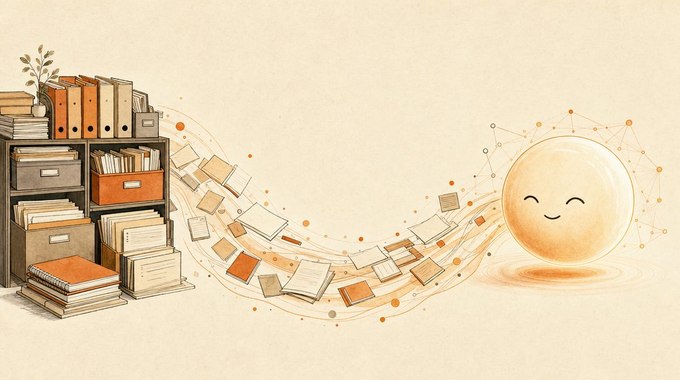
Gather your files into one folder you control
Here's the mistake I see most often. People treat the AI's chat window as the place their work lives. The chat window is only a view onto your work. The work itself should live in files, in a folder on your computer, where any tool can read it.
That one change makes switching painless forever, because the next tool just points at the same folder.
Don't count on the export as your file backup. Go and find the original copies of the important documents you uploaded over the months: the brand guide, the price sheet, the course outline, the spreadsheets. Put them in one folder with clear names.
A simple structure works:
- brand: your voice rules, colours, logo, bio and photos.
- clients: one folder per client, with notes and deliverables.
- content: posts, scripts, decks and anything you publish.
- projects: one folder per project, each with its handoff.md.
Name files the way you'd search for them. "Hartley proposal March 2026" gets found. "final v2 REAL" gets guessed at. AI tools search your folder by name and content, so a clear name is the cheapest upgrade you can make to every future answer.
If your folder is already a mess, ask Claude to suggest a structure and rename things for you, and to show you the plan before it moves anything.
At the same workshop, an attendee described 40 years of their own material, carefully organised over months with ChatGPT, and asked how to share it between ChatGPT and Claude.
The answer is this folder. When your knowledge lives in plain files you own, both assistants can read the same source, and neither one holds it hostage. I go deeper on that setup in build a second brain your AI can actually read.
Know what doesn't move, and plan around it
A few things stay behind no matter how careful you are. Better to know now than to discover them mid-project.
Your past conversations don't become Claude's conversations. The export gives you a record you can read and search, but Claude can't import it as its own history. That's why the handoff documents matter: they carry the parts of old conversations that still need to be acted on.
Your connections need reconnecting. If you connected ChatGPT to apps like Gmail, Google Drive or your calendar, those links don't transfer. You'll connect them again in Claude, which takes a click and a Google sign-in for each one. Each connector has its own limits, and I've covered them one by one, starting with connecting Gmail to Claude.
Your settings and preferences start fresh. Things like response length, formatting habits and custom instructions don't come across automatically. The memory import catches some of this. The rest is quick to set again, and a brand file covers most of it.
Anything built inside ChatGPT's own features stays there. Shared links you sent people and images you generated live in your OpenAI account. Download anything you want to keep, and leave the account open until you're sure you're done with it.
Together, these are why the move takes an afternoon. Each one is quick to handle once you know it's coming.
Save your custom GPTs as skills before December 11
If you built custom GPTs, this is the step with a deadline. Per OpenAI's retirement FAQ, custom GPTs are scheduled to retire on December 11, 2026. A few Enterprise workspaces with an approved deferral get until February 11, 2027. Personal ChatGPT accounts already can't create new GPTs, as of November 2026.
Per OpenAI, at the retirement date "custom GPTs and their GPT pages become inaccessible." Your past chats with them stay in your history, but the instructions go with the page.
Those instructions are the valuable part, and they move. Here's the detail I find telling: OpenAI's own replacement is plugins, and during migration "the GPT's instructions become a skill within the new plugin." Even OpenAI is moving to skills. The skill format was first developed by Anthropic and released as an open standard, so a skill you build now works across tools that support it.
To copy a GPT's instructions:
- In ChatGPT on the web, open Explore GPTs, then My GPTs.
- Choose the GPT and select Edit GPT.
- Copy everything in the Instructions field into a text file.
- Save copies of any knowledge files you attached, if you still have the originals.
If you already migrated a GPT to a plugin, the original stays usable until retirement but becomes read-only. Custom actions, the connections a GPT made to other services, don't transfer even in OpenAI's own migration, so plan to replace them with Claude's connectors.
Then bring the instructions into Claude and turn them into a skill, which is the Claude equivalent: a saved set of instructions Claude follows whenever that job comes up.
Paste this into the Code tab of the Claude desktop app:
Here are the instructions from a custom GPT I used in ChatGPT:
[paste the instructions]
Turn them into a Claude skill. Keep my rules, examples and tone.
Write a description that includes the phrases I'd actually say
when I want this job done. Ask me about anything that's unclear,
show me the skill before you save it, then install it for me.
You'll often end up with something better than the GPT. A skill can include checks it runs before it hands work back, reference files it reads only when needed, and steps that save finished files straight into the right folder. If skills are new to you, start with what a Claude skill is.
Prefer Claude chat? Describe the GPT in a new chat, ask Claude to build it as a skill, and add the file it makes under Customize, then Skills. Skills are available on every Claude plan as of November 2026.
Keep the switch painless by sidestepping 5 traps
I've helped enough people move between AI tools to see the same mistakes again and again. Here are the 5 that cost the most.
1. Importing stale memory. Months of ChatGPT memory includes things that were true once: an old offer, a retired price, a niche you've left. Import it unread and Claude starts confidently repeating your old business back to you. Read the list first and delete anything out of date.
2. Cancelling before the export has downloaded. The export can take days to arrive and the link lasts 24 hours. Cancel first and you're relying on a timeline you don't control. Keep the old subscription through one billing cycle.
3. Starting every project from a blank page. Re-explaining a half-finished project from memory loses the reasons behind your decisions, and the new assistant will happily make different ones. A handoff document takes 2 minutes and saves the whole thread.
4. Moving everything at once. You don't need to migrate 30 projects on day 1. Move the one you're working on this week. Move the others when you next touch them. Most old projects never need moving at all.
5. Leaving custom GPTs until the last week. OpenAI retires them on December 11, 2026, and the GPT pages go with them. Copy the instructions now, while the page still opens, even if you rebuild the skill later.
The common thread is patience in the right places. Move fast on memory and history, because they're quick and they protect you. Move slowly on projects, because each one deserves its own handoff.
Spend your first week on real work
The move is finished when the new tool is doing real work for you. Here's how I'd spend the first week.
Day 1: one real job, start to finish. Pick something you'd do anyway this week, like a client email, a social post or a proposal, and do it entirely in Claude. Notice what you have to explain that ChatGPT already knew, and add it to memory or to a project's handoff.
Day 2 or 3: give it your brand. Ask Claude to read your website and write down your colours, fonts and voice in a file it can reuse. Every output after that starts from your brand.
Day 4: turn your most repeated job into a skill. The one you've explained to an AI the most times. That's where the time savings start compounding.
Day 5: tidy the old account, carefully. Only after your export has downloaded and you've checked it opens. Then delete what you no longer need.
Don't cancel your old subscription in the first week. Give yourself one billing cycle of overlap, so nothing you forgot is lost.
Keep the 3 things that make a move painless next time
Every move teaches the same lesson. Here's what to keep doing, whatever tool you end up in.
- Keep your knowledge in files you own. Your folder is the asset. The AI is a window onto it.
- Write handoffs as you go. A short "where this stands" note at the end of a work session makes the next session, and the next tool, start fast.
- Turn repeated instructions into skills. Skills follow an open standard, so they're the most portable thing you can build.
Do those 3, and the next time a better tool comes along, switching takes minutes instead of weeks.
Start with skills that already work in both tools
Every skill in the Solo Creators AI Studio runs in Claude Code and in Codex, so you can start before you've decided which assistant you'll settle on. Each one installs by dragging it into the app and asking, and each comes with a short course on how to use it.
If you're moving because you want your AI working inside your files, that's exactly what they're built for: slide decks, carousels, website audits, blog posts, video edits and more, all in your brand.
Key takeaways
- Claude has a built-in memory importer on every plan. Open Settings, Your Claude, Start import, run the prompt it gives you in ChatGPT, then paste the answer back.
- Write a handoff document for each live project while the old chat still has the full context. Claude can't import old conversations, so the handoff carries your reasons.
- Request your ChatGPT export first. It can take up to 7 days to arrive, and the download link expires 24 hours after it does.
- Keep your work in a folder you own. When your files live on your computer, any AI tool can read them and switching takes minutes.
- Copy your custom GPT instructions before December 11, 2026, when OpenAI retires custom GPTs. Then ask Claude to rebuild each one as a skill.
Get this skill, and every one I build.
30-day money-back guarantee. Cancel anytime.
Questions people ask
Can I transfer my ChatGPT memory to Claude?
Do I lose my chat history if I switch from ChatGPT to Claude?
How do I move a project from ChatGPT to Claude?
Can I bring my custom GPTs to Claude before they're retired?
Should I switch from ChatGPT to Claude at all?
When should I cancel my ChatGPT subscription?

Ronnie spent 18 years building a SaaS with a team of 20 that served over 650,000 customers, generated over $14M in sales, and sent over 550M emails. Now he's solo, solving real business bottlenecks and turning them into working AI skills, workflows, and automations. He teaches all of it, with direct access to him, inside the Solo Creators AI Studio Skool community. See what he's built →
 Michael HattawayFounder, Iron Strengthens Iron
Keep reading