Make your spreadsheet charts look boardroom-ready
Same data, but now it looks like it came from a top consulting firm.
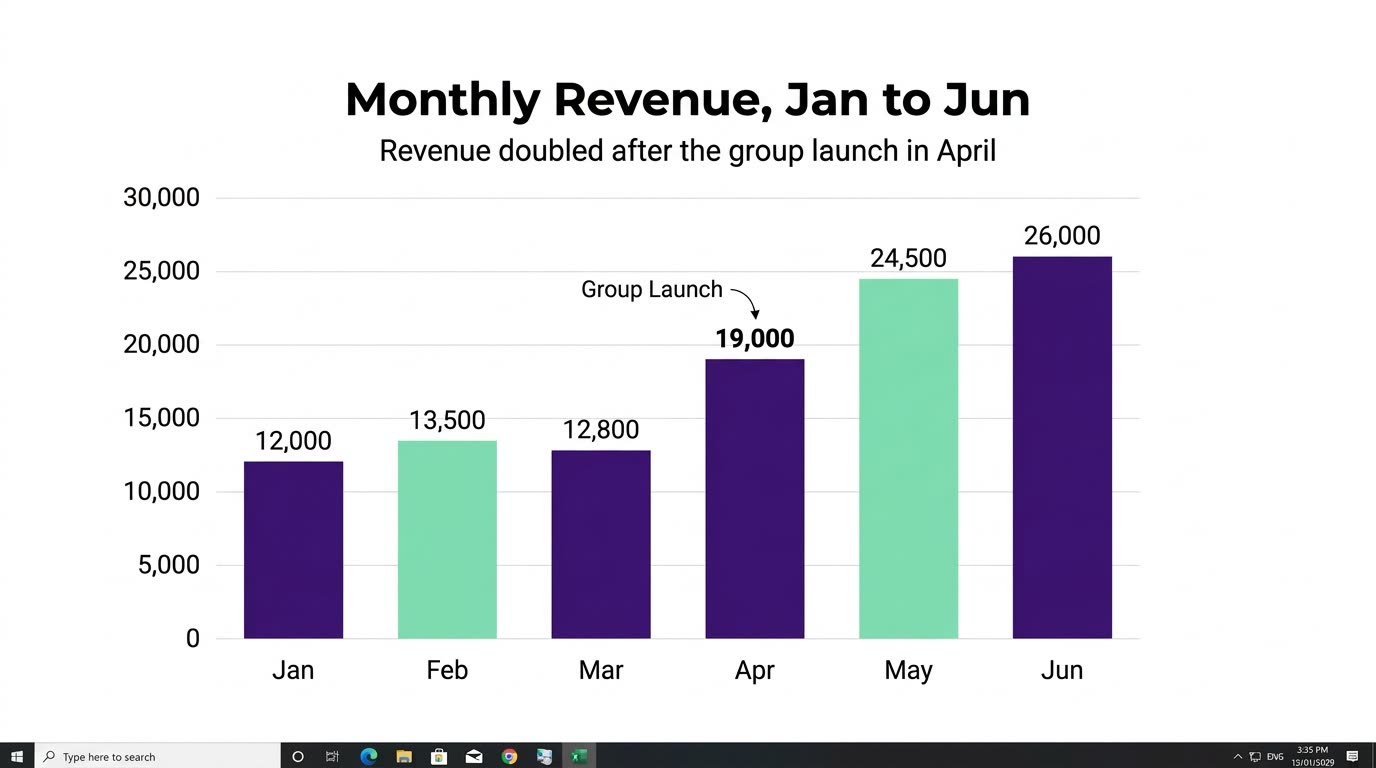
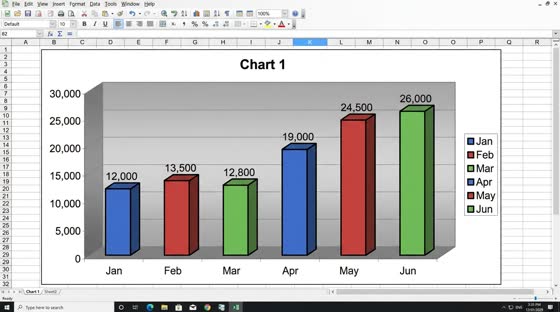 Before
A real example. The small "before" photo is a sample we made with AI, and the result came from running this exact prompt on it in Google Gemini's image tool. Sample details used: Chart destination: a client report; Brand colors: deep purple and mint; Chart title: Monthly Revenue, Jan to Jun; Key insight: Revenue doubled after the group launch in April.
Your image prompt
Attach a clear photo first, then paste the prompt with it.
Fill in your details. Skip any you like.
Each button copies your prompt and opens a new chat that makes images. Just paste it in.
The prompt that gets copied
Redesign the chart in my uploaded screenshot so it looks presentation-ready for [CHART DESTINATION, e.g. a client report]. Keep every data point, value, label, and axis exactly the same. Don't round, add, or remove any numbers. Use a clean modern style: [BRAND COLORS, e.g. navy and teal] for the data, light gray gridlines, a bold title that reads "[CHART TITLE]", and a one-line takeaway under the title: "[KEY INSIGHT, e.g. Revenue doubled after the group launch]". Label the most important bar or point directly. Remove clutter like heavy borders and 3D effects. White background, generous margins, and crisp sans-serif text that's easy to read on a projector.
Screenshot a plain chart from Excel or Google Sheets and get a polished, presentation-quality version that keeps the same numbers.
Step by step
- Screenshot your chart, including the axis labels.
- Upload it and paste the prompt.
- Compare every number to the original before you use it.
What you'll get
A clean, modern chart with your exact data, a clear headline, and a takeaway line, ready for a slide or report.
- Made for
- Consultants, Coaches, Small business owners
- Works in
- ChatGPT, Gemini

 Before