Get an old deck matching your new look with one prompt
Every slide changes from one prompt, and you can still undo it or roll back with version history.
Published . Steps as of November 2026.
How do I change the style of a whole Google Slides deck at once?
Ask Gemini in the Slides side panel to update the whole deck to match another presentation you've attached. As of November 2026, it needs a Business or Enterprise Standard or Plus plan, or Google AI Pro or Ultra. If you've just rebranded, this fits your old decks. If you only want tidy titles, ask it to make them all the same font size and color instead. Edits land as if you'd made them, so undo still works.
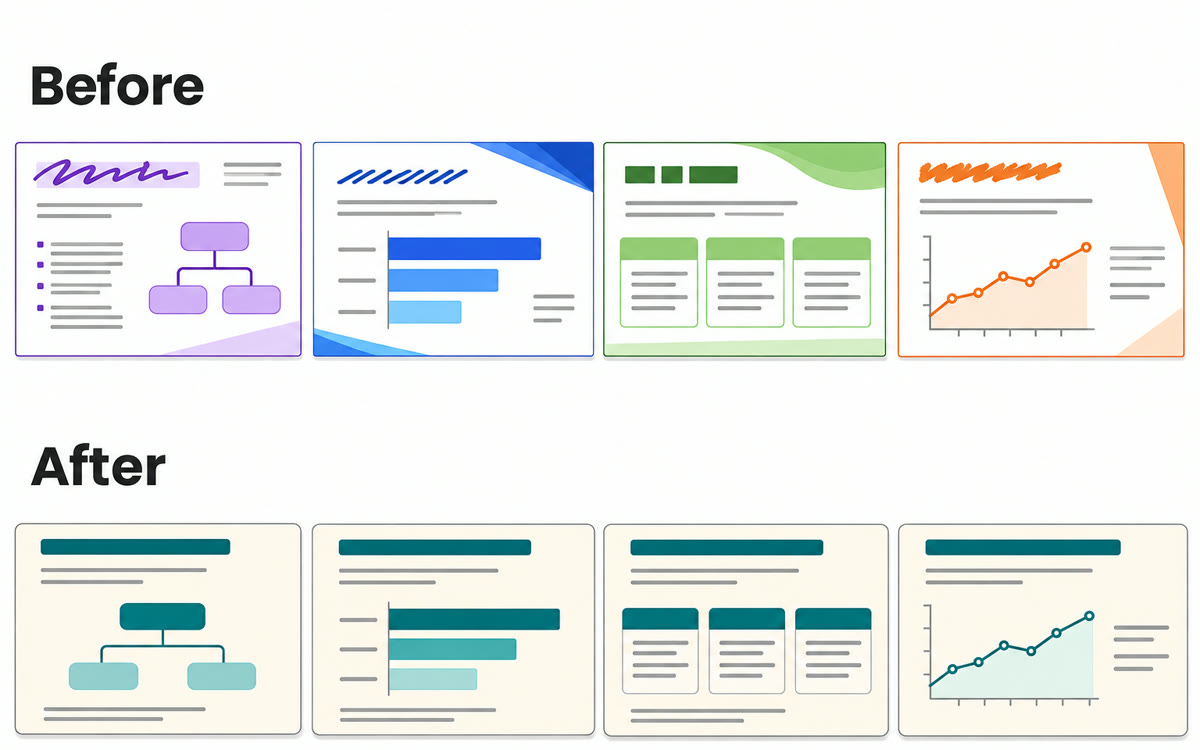
A sample of what you get back, made with AI.
Your prompt
Fill in your details. Skip any you like.
This AI can't be filled in from a link, so the button copies your prompt: paste it into the new chat.
The prompt that gets copied
Update this whole deck to match the style of [REFERENCE DECK NAME, e.g. my 2026 client kickoff deck], the presentation I've attached.

Match its fonts, colors and layouts on every slide. Make the titles on all slides the same font size and color.

Don't change my words, my numbers or the order of my slides. Leave [WHAT TO LEAVE ALONE, e.g. the client logos on slide 9] exactly as it is.

When you're done, tell me which slides changed the most, and list any slide where the new style didn't fit so I can check it myself.
Open an old Google Slides deck and ask Gemini to restyle every slide to match a deck you like. You get native, editable slides, plus a summary of what changed.
Step by step
- Open the old deck in Google Slides
- Click Ask Gemini to open the side panel
- Add the deck whose style you want from Drive
- Paste the prompt below and send it
- Read the summary of changes, and use undo if you don't like something
What you'll get
The same deck with a consistent new look across every slide, still fully editable, with a summary of the changes in the side panel.
Needs Business or Enterprise Standard or Plus, or Google AI Pro or Ultra. English only. Rollout started October 29, 2026.
- Made for
- Coaches, Consultants, Creators, Small business owners
- Works in
- Gemini

 Before