Keep your logo and photos consistent across every AI video clip
Add your logo once, then every new clip in the project starts from the same saved assets.
Published . Steps as of November 2026.
How do I keep my logo the same in every AI video clip?
Add your logo and photos once in Google Vids, then reuse them from the Assets grid for each new clip in the project. As of November 2026, Vids saves media you use in AI video generation so you can pick it again. This fits creators and small businesses making a short series. If you only need one clip, uploading the logo for that single run is enough. Reuse works inside one project only.
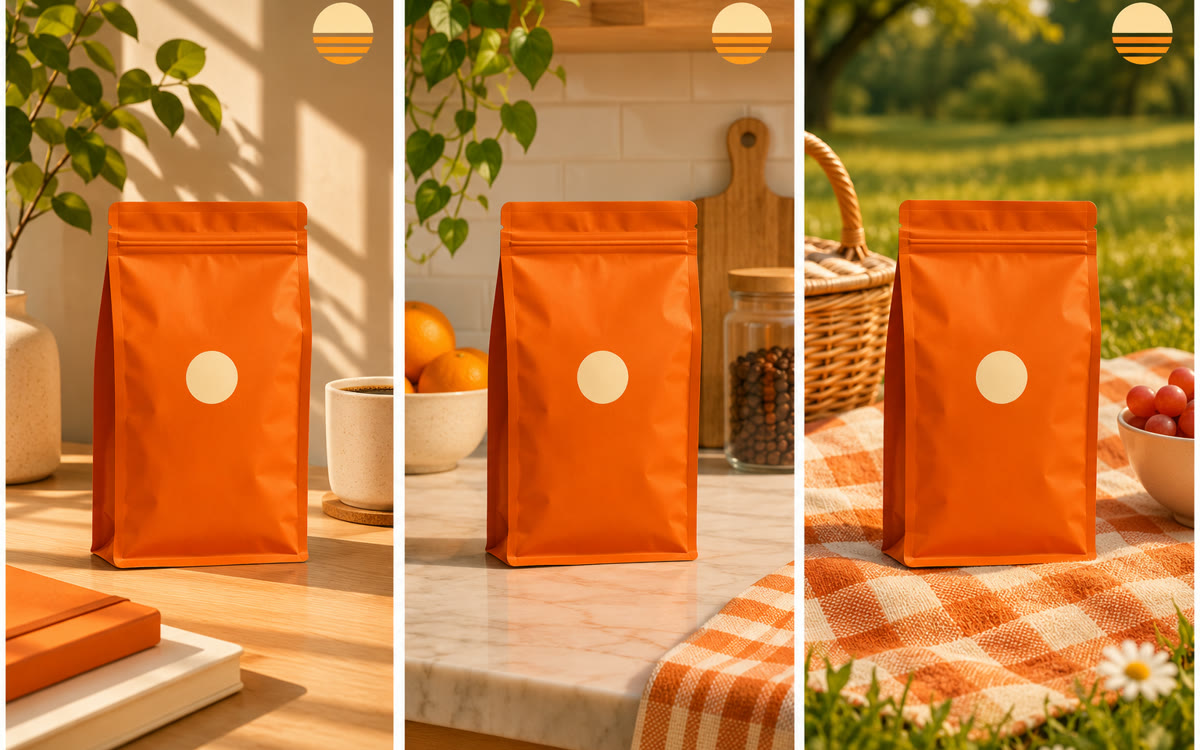
A sample of what you get back, made with AI.
Your prompt
Fill in your details. Skip any you like.
This AI can't be filled in from a link, so the button copies your prompt: paste it into the new chat.
The prompt that gets copied
Make a [LENGTH, e.g. 8-second] vertical video clip for [YOUR BUSINESS]. Use the attached logo and product photo exactly as they are. Scene: [SCENE, e.g. a hand setting the product on a sunny desk]. Style: [STYLE, e.g. bright, calm, friendly]. Keep the logo clear and readable at the end. Don't add any other text or people, and keep the colors the same as the photo.
Google Vids now saves the images, video, and audio you use in AI video generation, so your next clips reuse the same logo and photos with one click.
Step by step
- Open a Google Vids project and start an AI video generation.
- Click the ingredients box and add your logo or photos from Drive or Photos.
- Paste the prompt below, change the scene, and generate the first clip.
- Reopen the ingredients box, pick the same assets, and change only the scene.
What you'll get
Several short clips that share the same logo and product look, ready to join into one video.
Business, Enterprise, Education plans or personal Google AI Pro or Ultra. Assets reuse works inside one project.
- Made for
- Creators, Small business owners, Coaches
- Works in
- Gemini