See where your business went over budget, right in Google Sheets
Claude adds the tabs, writes the formulas and draws the chart inside your own sheet while you watch.
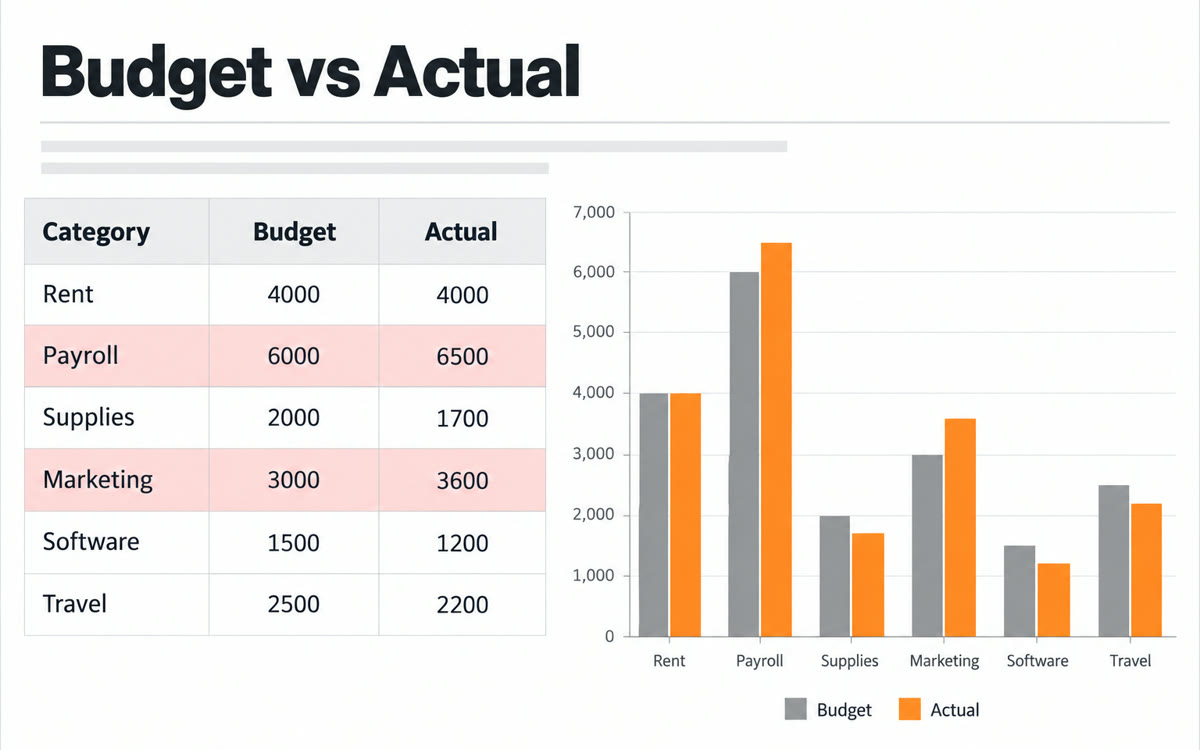
A sample of what you get back, made with AI.
Your prompt
Fill in your details. Skip any you like.
Claude opens with your prompt already typed in. It's copied too, just in case.
The prompt that gets copied
This sheet has my budget and what I actually spent for [TIME PERIOD, e.g. July to September]. My business is [YOUR BUSINESS, e.g. a two-person cleaning company].

Please:
1. Add a new tab called "Budget vs actual" with one row per spending category: budget, actual, difference in dollars and difference in percent. Use real formulas that point to my data, not typed numbers.
2. Highlight any category that went more than [OVER BUDGET LIMIT, e.g. 10%] over budget.
3. Add a chart that compares budget and actual for each category.
4. Under the table, write 3 short plain-English notes: where I overspent most, where I came in under, and one thing to watch next quarter.

Don't change my original tabs. If a category name doesn't match between budget and actual, ask me before you merge it.
Open Claude inside Google Sheets and it builds a budget vs actual report from your numbers, with a chart and every over-budget line flagged.
Step by step
- Install the Claude for Google Workspace add-on from the Google Workspace Marketplace
- Open the sheet with your budget and your real spending
- Open the Claude sidebar and paste the prompt
- Approve each change card, or switch to accept all edits
What you'll get
A new tab with a budget vs actual table, over-budget lines flagged, a comparison chart and three plain-English notes.
Claude for Google Workspace is in public beta on paid Claude plans.
- Made for
- Small business owners, Consultants, Coaches
- Works in
- Claude