Get an accurate infographic from any article you paste in
It reads the article, checks the facts, and designs the poster in one go.
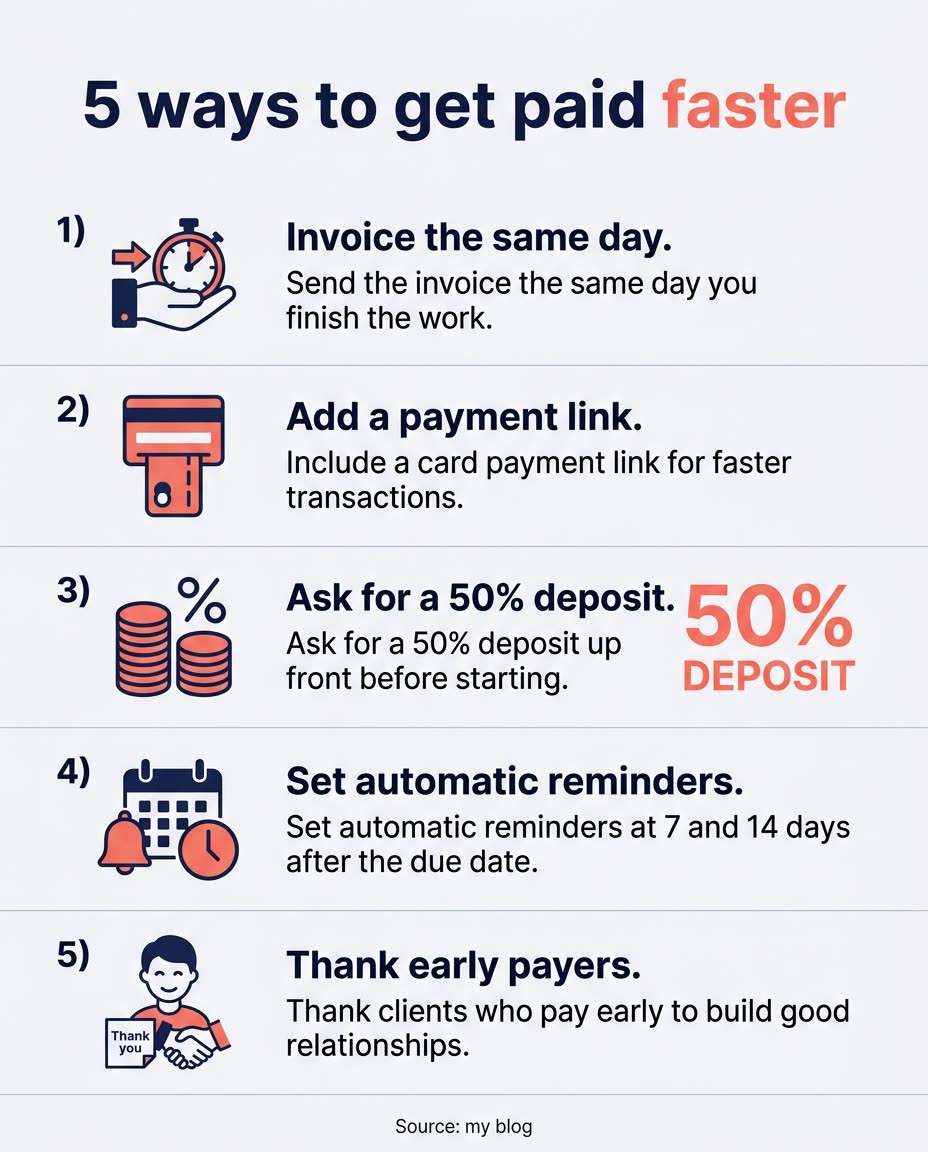
A real example, made with this exact prompt in Google Gemini's image tool, with sample details filled in. Sample details used: Your audience: busy small business owners; Infographic headline: 5 ways to get paid faster; Your brand colors: navy and coral; Source name: my blog.
Your image prompt
Fill in your details. Skip any you like.
Each button copies your prompt and opens a new chat that makes images. Just paste it in.
The prompt that gets copied
Read the text below and turn it into a clean, vertical infographic for [YOUR AUDIENCE, e.g. busy small business owners]. Title: "[INFOGRAPHIC HEADLINE, e.g. 5 ways to get paid faster]". Pull out the 4 to 6 most useful points and show each one as a numbered section with a simple flat icon, a short bold heading, and one plain-English sentence. If the text includes numbers, show the most important one as a large stat callout. Use [YOUR BRAND COLORS, e.g. navy and coral] on a light background, a modern sans-serif font, and plenty of white space. Double-check every fact and figure against the text, and don't invent anything that isn't there. Add a small footer: "Source: [SOURCE NAME, e.g. my blog]". Text: [PASTE ARTICLE OR NOTES]
Paste a blog post or your notes and get a clean infographic. Gemini's newest image model can check facts with Google Search as it draws, so the numbers hold up better.
Step by step
- Copy the article text or your notes.
- Pick the Thinking option in Gemini if you have it, then paste the prompt and text.
- Check every number against your source before you post it.
What you'll get
A tall, scroll-friendly infographic with a headline, numbered sections, icons, and one big stat callout, all pulled from your text.
- Made for
- Coaches, Consultants, Creators, Small business owners
- Works in
- Gemini, ChatGPT

 Before